Why Is Your Zoom Background Backwards and How to Fix It
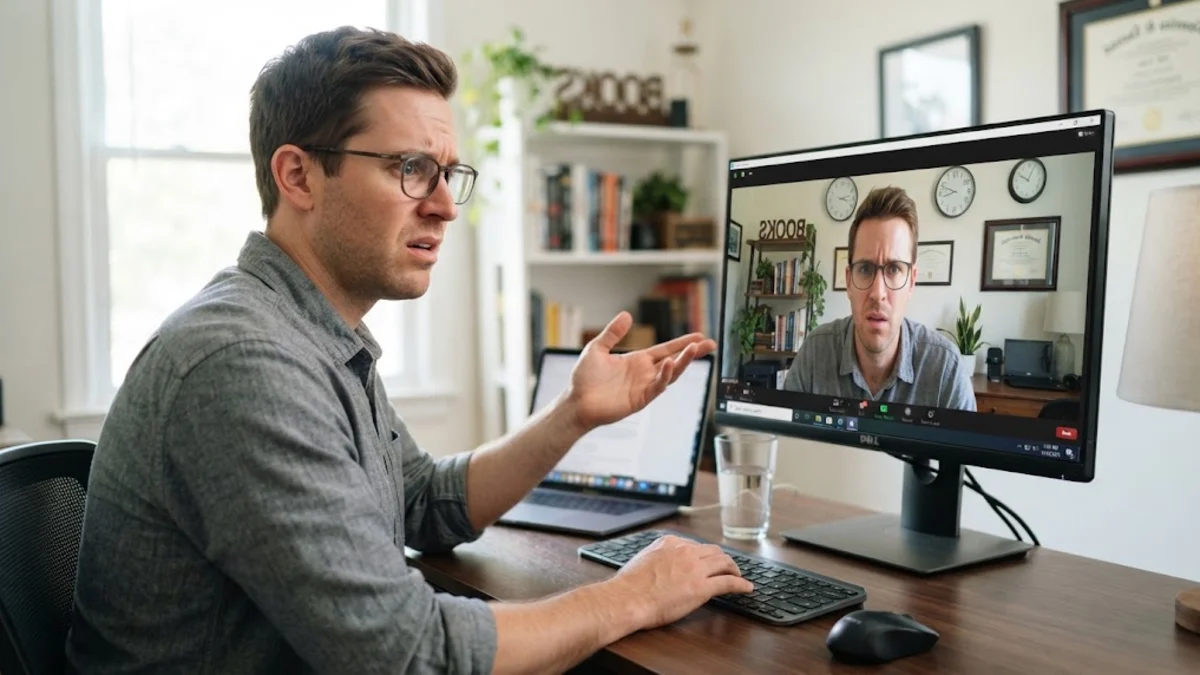
Have you ever joined a video call only to notice that your virtual background, or any text behind you, looks completely reversed or mirrored? This frustrating issue happens because video conferencing software flips your preview feed by default so it acts like a natural mirror, which unfortunately scrambles any text or asymmetrical graphics you use.
Fortunately, fixing a backwards Zoom background takes less than a minute once you know which setting to toggle. Whether you are joining meetings from a Windows laptop, a Mac, or a mobile device, adjusting your video orientation settings will instantly straighten out your display for everyone on the call.
Understanding Why Your Zoom Background Appears Flipped
When you look into a physical mirror, your left side appears on the right and your right side appears on the left. Video conferencing applications like Zoom apply this exact concept to your live video feed by default. This default setting is known as video mirroring. Software developers design cameras to flip the image horizontally because human beings are psychologically accustomed to seeing their own reflection behave this way, making self-monitoring feel much more natural during long conversations.
However, this helpful self-view feature creates a major problem when you apply a virtual background that contains written words, logos, or specific directional patterns. Because your local preview feed is horizontally flipped, text written on your background banner or shirt will appear backward to you. While Zoom often corrects this so participants see it normally, many camera configurations or specific updates cause the mirrored effect to bleed into the actual video stream broadcasted to everyone else in the meeting room.
How to Fix a Backwards Background on Windows and Mac
If you are using the Zoom desktop client on a Windows PC or a macOS computer, disabling the mirror effect is a straightforward process that you can complete before or even during an active meeting. To change this setting globally so you never have to worry about it again, open the Zoom application and click on your profile picture in the top right corner. From the dropdown menu, select Settings to open the main configuration panel. On the left-hand sidebar, click on the Video tab to view your camera preview and layout preferences.
Under the Meetings or Video settings section, scroll down until you locate the checkbox labeled Mirror my video. By default, this box is checked. Click the checkbox to uncheck it. You will immediately notice your live preview flip back to a non-mirrored state, meaning text on your virtual background will now read correctly from left to right on your screen. If you are already inside a live meeting, you can click the small upward arrow next to the Stop Video button in the bottom toolbar, select Video Settings, and uncheck the same mirroring option instantly.
Adjusting Video Mirroring on the Zoom Mobile App
Joining meetings from an iPhone, iPad, or Android device is convenient, but the mobile app manages camera layouts slightly differently than the desktop version. If your virtual background text looks flipped while using a smartphone, you can adjust the settings directly within the app interface. Start by tapping on the Settings gear icon located in the bottom right corner of the Zoom app home screen, then tap on the Meetings menu to access your personal video controls.
Scroll down through the meeting options until you find the toggle switch for Mirror My Video. Tap the switch to turn it off. Alternatively, if you are currently in an active meeting on your phone, tap anywhere on your screen to bring up the meeting controls, tap More, select Meeting Settings, and toggle off the video mirroring option there. Keeping this setting disabled ensures your mobile camera feed transmits text and backgrounds in the correct orientation to your colleagues, clients, or classmates.
What to Do If Text and Logos Still Look Reversed
Sometimes, unchecking the mirror video option in Zoom does not completely solve the problem because the issue originates from your webcam's proprietary software or a connected external capture device. Many modern webcams and virtual camera tools come with their own dedicated control applications that feature independent horizontal flip toggles. If your feed remains backward, open your camera manufacturer software or utility app, look through its video enhancement settings, and ensure that any hardware-level mirroring or image flipping features are turned off.
Another common culprit is the specific file format or design of your virtual background image. If you uploaded a custom graphic that you intentionally flipped beforehand to compensate for Zoom settings, it will now look incorrect with mirroring turned off. Always design or download your virtual background assets in a standard, non-reversed format, and let Zoom handle the final orientation through its native software settings rather than altering the source image file manually.
Troubleshooting Camera Drivers and Software Conflicts
If you have disabled video mirroring in both Zoom and your camera software, but your background still randomly flips back and forth during calls, outdated camera drivers or conflicting third-party virtual camera applications are often to blame. Software suites like OBS Studio, Snapchat Lens, or specialized lighting control apps can sometimes override Zoom display settings. To fix this, close any background video utilities that might be routing your camera feed before launching Zoom.
Next, ensure your operating system and Zoom application are fully updated to the latest available version. Software bugs related to video rendering and camera orientation are frequently patched in routine updates. On Windows, open the Device Manager, expand the Cameras section, right-click your webcam device, and select Update driver to make sure your hardware is communicating properly with your video conferencing software without unexpected glitches.
Best Practices for Virtual Backgrounds Without Mirroring Issues
To avoid awkward moments during important professional presentations or interviews, test your camera setup well before your meeting begins. You can easily do this by starting a solo meeting or using the video preview window in your settings menu. Ensure that any text displayed on your virtual background, digital badge, or company logo is clearly legible and reads naturally from left to right on your local display monitor.
Additionally, pay close attention to your lighting and physical positioning. When your background is properly oriented, make sure your lighting is even across your face so that virtual background software can accurately separate you from the background image. Avoid wearing clothing that matches your virtual background color, as this can cause visual tearing or glitching that makes the entire video feed look unprofessional regardless of your mirroring settings.
The bottom line
Fixing a backwards Zoom background is a quick process that simply requires toggling off the video mirroring setting in your desktop or mobile app preferences. By taking a moment to adjust these settings and verifying your camera configuration, you can ensure your virtual meetings look polished and professional every single time.
Frequently asked questions
Why does Zoom mirror my video by default?
Zoom mirrors your video feed by default so your self-view acts like a traditional physical mirror, which feels more natural and intuitive for most users during conversation.
Does my video look backwards to other meeting participants?
Usually, Zoom automatically corrects the video feed so other participants see text and backgrounds in the correct orientation, even if it looks flipped on your own screen.
Can I change video mirroring during an active Zoom meeting?
Yes, you can change it during a meeting by clicking the upward arrow next to the Stop Video button, opening Video Settings, and checking or unchecking Mirror my video.
Why is my custom virtual background still text-reversed after turning off mirroring?
If your background graphic was manually pre-flipped to compensate for the mirror setting, turning off mirroring will cause the text to look backward again. Use a standard, unflipped image file.
Do mobile apps have the same video mirroring option as desktop apps?
Yes, both iOS and Android Zoom apps include a mirror video toggle switch located inside the meeting settings menu.