How to Put AirPods in Pairing Mode
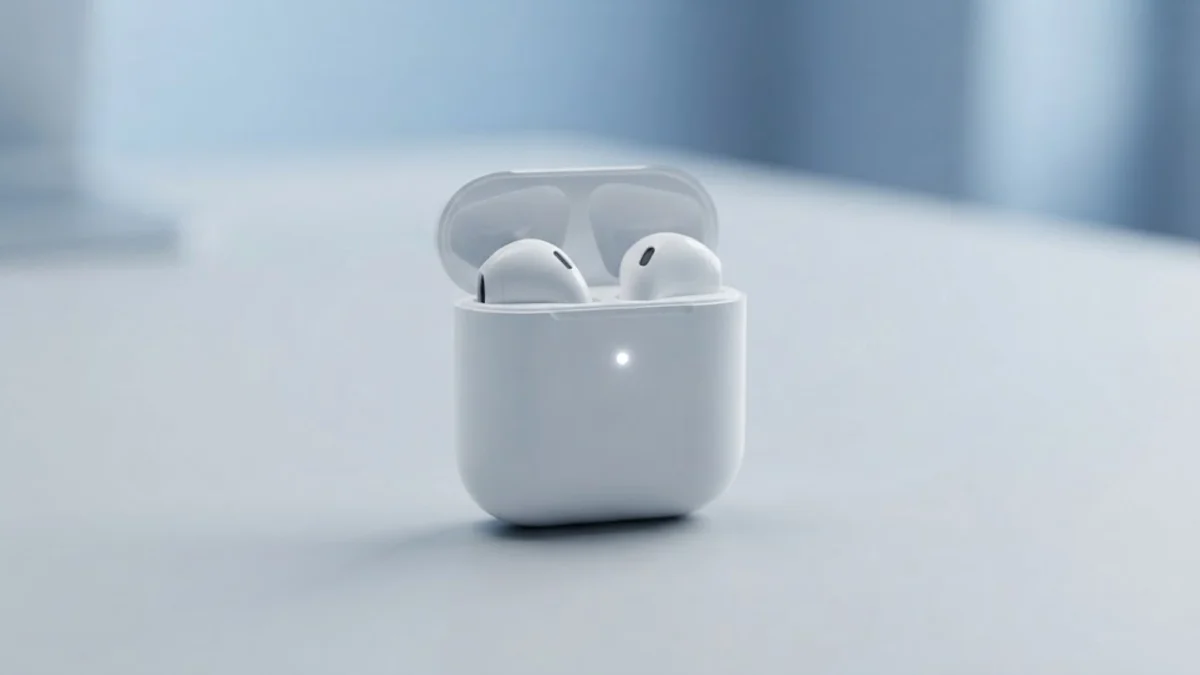
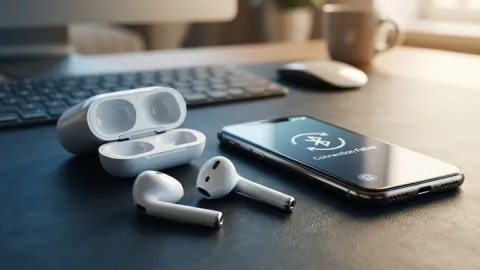
Getting your wireless earbuds ready to connect to a new device is a straightforward process once you know the exact steps. Whether you are switching your favorite earbuds to a Windows laptop, an Android phone, or a secondary Apple device, entering the setup state is the first thing you need to do.
This guide will walk you through the precise procedure to get your wireless earbuds connected without hassle, along with troubleshooting tips if your charging case light refuses to cooperate.
Understanding AirPods Pairing Mode
Before you begin attempting to connect your wireless earbuds, it helps to understand how the system communicates with your devices. Unlike standard Bluetooth headphones that usually have a dedicated power or Bluetooth button, Apple earbuds rely entirely on the physical button located on the back of their charging case. When you trigger this setup state, the internal Bluetooth transmitter opens up a broadcast channel, allowing nearby hardware to discover and authenticate your earbuds.
During this process, the status light on your charging case plays a critical role. If the light flashes white, your earbuds are actively broadcasting and waiting for a connection request. If it flashes amber or orange, it typically indicates an authentication error or a low battery warning that requires your immediate attention. Knowing what these visual cues mean will save you plenty of frustration when troubleshooting connection failures.
Preparing Your AirPods and Charging Case
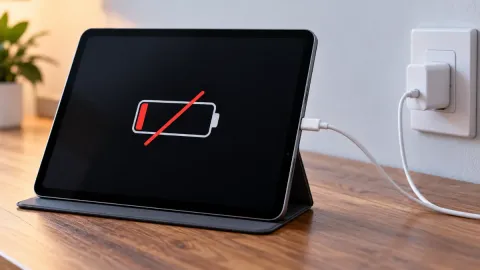
Proper preparation ensures a smooth connection process every single time. First, make sure both of your earbuds are securely seated inside their charging case and that the lid is closed for at least five seconds. This resets the internal connection cycle between the individual earbuds and the case itself. If your case has a low battery, it might fail to transmit the pairing signal properly, so checking the charge level beforehand is always a smart move.
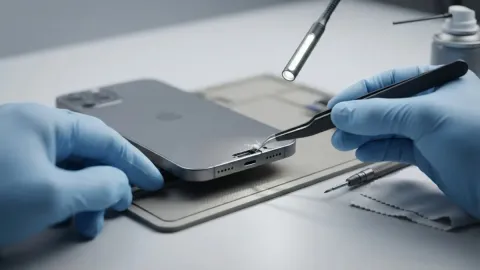
Next, clean any debris or dust out of the lighting port and check that the charging contacts inside the case are clean. If one earbud is not making proper contact with the metal pins inside the case, the case will not recognize that both units are present, which can prevent the setup button from initiating the discovery cycle. Once you have verified that everything is clean and properly seated, you are ready to move on to the actual button sequence.
Step-by-Step Guide to Entering Pairing Mode
Initiating the connection sequence requires a specific physical action with the charging case. Follow these exact steps to trigger the broadcast signal successfully:
- Place both of your earbuds inside the charging case and close the lid securely.
- Wait approximately five seconds, then open the lid of your charging case.
- Locate the small round button on the back of the case. Do not plug anything into the lightning or USB-C port yet.
- Press and hold the setup button on the back of the case firmly.
- Keep holding the button until the status light located between the earbuds (or on the front of the case for wireless charging models) begins flashing white continuously.
Once the light flashes white, your earbuds are actively broadcasting and ready to pair with any nearby host device.
Connecting AirPods to an iPhone or iPad
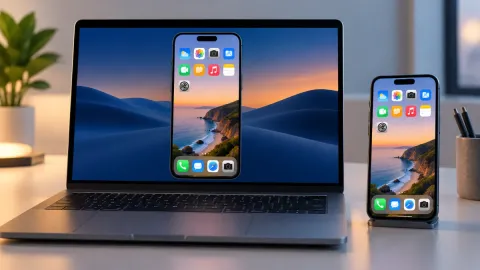
If you are connecting your earbuds to an Apple device running iOS or iPadOS, the process is largely automated and heavily integrated into the operating system. Make sure your iPhone or iPad has Bluetooth enabled by going to Settings > Bluetooth. Unlock your device and hold the open charging case containing your earbuds right next to the screen.
A setup animation card should automatically pop up on your screen within a few seconds. Tap the Connect button on the prompt and follow any on-screen instructions if you are configuring features like spatial audio or digital assistant integration. If the automatic pop-up window fails to appear, you can manually select your earbuds from the list of available Bluetooth devices at the bottom of the Bluetooth settings menu.
Connecting AirPods to a Windows PC or Android Device
Connecting your Apple earbuds to non-Apple hardware is entirely possible, though it requires a few extra manual steps. First, open the Bluetooth settings on your Windows computer or Android smartphone. On a Windows PC, navigate to Settings > Bluetooth & devices > Add device and select Bluetooth. On an Android phone, go to Settings > Connected devices > Pair new device.
Once your host device is actively scanning for hardware, put your earbuds into pairing mode by holding the back button until the white light flashes. Your earbuds should appear in the list of available devices on your screen. Click or tap on their name to establish the connection. Keep in mind that advanced features like automatic ear detection and seamless device switching will not function when connected to non-Apple operating systems.
Troubleshooting Common Pairing Issues
Sometimes your earbuds refuse to enter the pairing state or fail to connect properly to your host device. If the status light refuses to flash white after holding the button, your earbuds may need a complete factory reset. To do this, press and hold the setup button on the case for about 15 seconds until the status light flashes amber and then flashes white. This clears out all previous device memory and restores default settings.
Another common mistake is attempting to pair while the earbuds are already actively connected to another nearby device, such as your laptop or tablet. Make sure to turn off Bluetooth on competing devices or place the earbuds back in the case to break active streams before trying to establish a new connection. Keeping your device software updated also prevents most recurring Bluetooth handshake errors.
The bottom line
Putting your AirPods into pairing mode is a simple process once you master the rear setup button and understand the indicator lights. Whether you are pairing with an iPhone, an Android phone, or a Windows computer, following these steps will get your wireless audio working in no time.
Frequently asked questions
Why won't my AirPods enter pairing mode?
This usually happens if the battery in the case is completely depleted, if one earbud is not seated correctly, or if a hard reset is required. Try charging the case for 15 minutes and cleaning the internal contacts.
How do I factory reset my AirPods?
Place them in the case, close the lid for 30 seconds, open the lid, and hold the setup button on the back for about 15 seconds until the status light flashes amber then white.
Can I connect AirPods to two devices at once?
AirPods can automatically switch between Apple devices signed into the same iCloud account, but they can only maintain an active audio stream with one device at a time.
Do AirPods stay in pairing mode forever?
No, if the earbuds do not successfully connect to a device within roughly 30 seconds of starting the flash sequence, they will exit pairing mode to conserve battery life.
Can I use AirPods with a Windows PC?
Yes, you can pair them with any Windows PC that has Bluetooth capabilities by putting them into pairing mode and selecting them from the Bluetooth settings menu.