How to Fix iPhone Charging Port
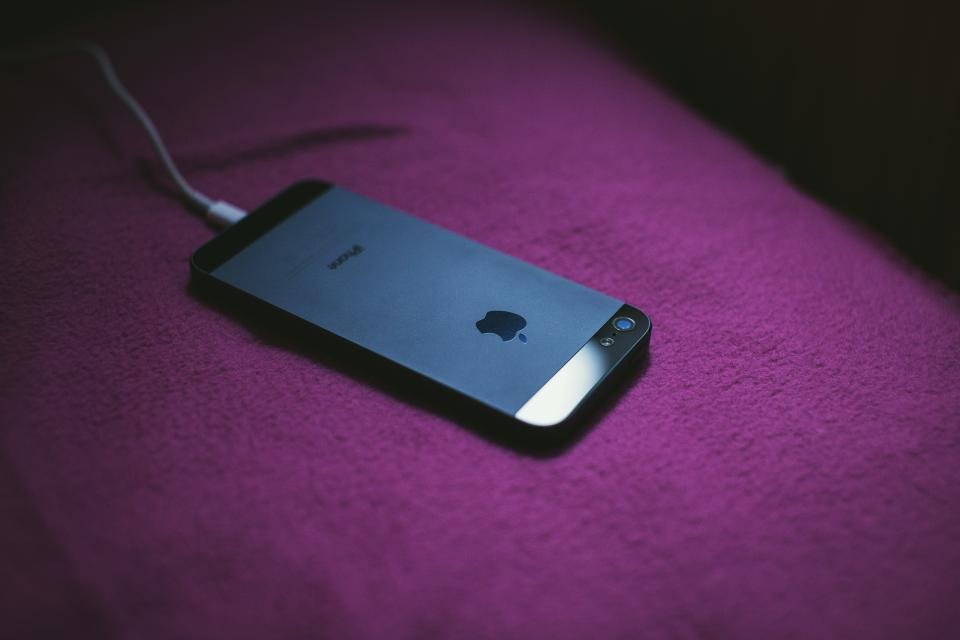
When your iPhone refuses to charge, the culprit is often a clogged or faulty charging port rather than a dead battery. By carefully inspecting the connection and ruling out cable or software issues, you can usually restore proper function in just a few minutes.
Inspect and Clean Debris From the Port
Pocket lint, dust, and microscopic debris frequently pack tightly into the bottom of an iphone charging port over months of daily carry. When this accumulation blocks the metal pins inside, your cable cannot make a reliable electrical connection, resulting in intermittent charging or no response at all.
To check for blockages, shine a flashlight into the port. If you see grey or white fuzz compressed at the bottom, take a wooden toothpick or a soft non-metallic tool and gently scrape it out. Never use metal pins, needles, or paperclips, as these can easily scratch the delicate gold contacts or short out the internal components permanently.
Test a Different Cable and Power Adapter
A failing charging cable or a weak wall adapter can easily mimic the symptoms of a broken charging port. Inspect your Lightning or USB-C cable along its entire length for signs of fraying, bending, or exposed wiring, particularly near the connector ends where stress is highest.
Plug your phone into a known working wall outlet using a certified cable and a high-quality power brick. If you notice that the device charges fine with alternate accessories, your previous cable or adapter was the source of the trouble. Always stick to certified accessories to ensure stable power delivery and protect your battery health over time.
Perform a Force Restart on Your iPhone
Temporary software freezes or firmware glitches can occasionally prevent iOS from recognizing power input even when the physical connection is completely fine. A standard shutdown may not clear these low-level system bugs, making a force restart necessary to reset the hardware management controllers.
Quickly press and release the Volume Up button, quickly press and release the Volume Down button, and then press and hold the Side button until the screen goes black and the Apple logo appears. Once your phone boots back up, plug the charging cable back in to see if the charging indicator lights up on your lock screen.
Check for Liquid Detection Warnings
Modern iPhones feature built-in moisture sensors that trigger a warning alert on your display if liquid is detected inside the connector. If you see a notification stating that charging has been stopped due to liquid detection, you must never force a cable into the port.
To resolve this, unplug the cable from both the phone and the wall adapter, then hold your iPhone upright with the charging port facing downward. Tap gently against your hand to expel excess liquid and leave the device in a dry, well-ventilated area for at least thirty minutes before trying to plug it in again.
Review Battery Health and Software Updates
Sometimes your charging port works fine, but software management features or degraded battery capacity give the impression of a hardware failure. Go to Settings > Battery > Battery Health & Charging to check your maximum capacity and see if Optimized Battery Charging is holding your charge at 80 percent.
Additionally, check for pending software updates by navigating to Settings > General > Software Update. Apple frequently releases iOS patches that resolve power management bugs and improve charging stability across different iPhone models.
When to Seek Professional Repair Services
If you have thoroughly cleaned out all lint, tested multiple certified cables, performed a force restart, and verified that no moisture is present, the issue is likely physical hardware damage. Dropping your phone while plugged in or exposing the connector to corrosive liquids can bend the internal pins or crack the solder joints on the logic board.
Take your device to an authorized Apple Store or an independent repair provider for a professional diagnostic evaluation. Technicians can professionally clean, repair, or replace the internal assembly if the connector is physically broken beyond safe home repair.
The bottom line
Troubleshooting an unresponsive iPhone charging port usually comes down to removing accumulated lint or ruling out faulty accessories. By following these methodical steps from simple cleaning to system checks, you can quickly identify the root cause and get your device back to peak performance.
Frequently asked questions
Can I use compressed air to clean my iPhone charging port?
No, using compressed air cans is strongly discouraged because the high pressure can push debris deeper into the port or force moisture from the canister into the internal housing of your phone.
Is it safe to use alcohol to clean my charging port?
You can use a tiny amount of high-concentration isopropyl alcohol (90% or higher) on a cotton swab to wipe around the outer rim, but ensure the phone is powered off and completely dry before plugging any cable back in.
Why does my iPhone charge wirelessly but not with a cable?
Wireless charging uses an induction coil on the back of the phone, bypassing the physical connector entirely. If wireless charging works while a cable does nothing, it confirms that your charging port is either physically clogged or damaged.
How often should I clean my iPhone charging port?
You only need to clean your charging port when you notice loose connections, debris buildup, or charging failures. Doing it too often with tools can risk damaging the contacts.
Will cleaning my charging port void my Apple warranty?
Carefully removing lint with a non-metallic tool like a wooden toothpick will not void your warranty, but using metal objects or causing physical damage to the pins will.