How to Fix AirPods Not Connecting
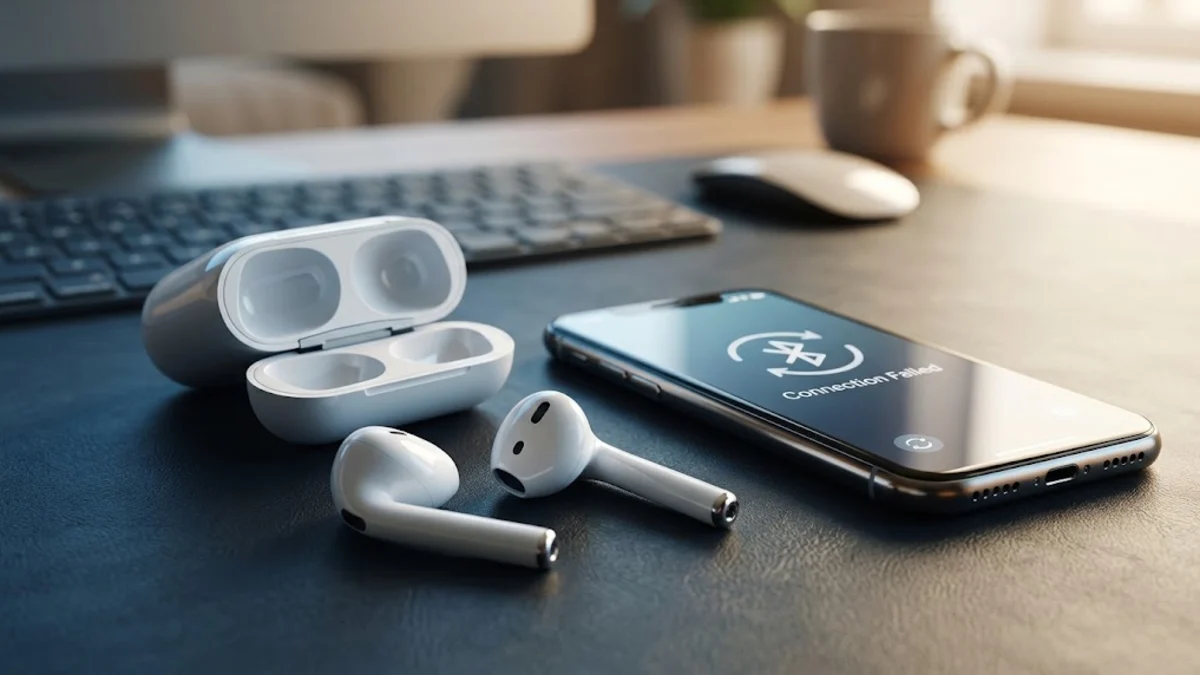
When your AirPods refuse to connect to your iPhone, iPad, or Mac, it can instantly disrupt your music, calls, or workflow. Fortunately, this common issue is usually caused by temporary Bluetooth glitches, low battery levels, or outdated connection pairings that can be resolved in just a few minutes.
This guide walks you through the most effective troubleshooting methods, ranging from simple Bluetooth toggles to complete factory resets, so you can get your audio gear working smoothly again.
Check Your Bluetooth Settings and Toggle Connection
The quickest way to solve connection failures is to refresh the Bluetooth connection between your Apple device and your AirPods. Sometimes, the operating system's Bluetooth daemon encounters a temporary freeze, preventing it from recognizing nearby wireless accessories. Start by placing both AirPods back into their charging case, waiting about ten seconds, and taking them back out to see if they automatically pair with your screen prompt.
If they still fail to connect, open your device settings to manually manage the connection. On an iPhone or iPad, go to Settings > Bluetooth and make sure the master toggle is turned on. Look for your AirPods in the list of my devices. If they show as not connected, tap the small i icon next to their name and select Connect. If the connection continues to fail, tap Forget This Device, confirm the action, and pair your AirPods from scratch as if they were brand new.
Clean the Charging Case Contacts and AirPods Stems
Physical obstruction is a frequent culprit behind stubborn connection and charging problems. Over time, pocket lint, earwax, sweat, and dust accumulate inside the bottom of the charging case and on the metal contact rings of the AirPods stems. When these contacts are dirty, the case cannot communicate properly with the individual earbuds, which often interrupts firmware synchronization and pairing signals.
To clean them safely, take a dry, lint-free microfiber cloth and gently wipe down the AirPods stems. For the charging case interior, use a clean, dry cotton swab to very carefully clear out any debris from the recessed ports. Avoid inserting sharp metal objects like paperclips or needles into the charging ports, as this can permanently damage the delicate internal contact pins and void your hardware warranty. Once everything is clean, place the AirPods back inside and verify if they register power and connection.
Perform a Complete Factory Reset on Your AirPods
When simple software refreshes and cleaning fail, resetting your AirPods to their factory defaults clears out corrupted pairing data stored in the hardware's onboard memory. This process forces the earbuds to forget all previous device associations and establish a totally fresh connection protocol.
To reset your AirPods, put them inside their charging case and close the lid. Wait thirty seconds, then open the lid. On your iPhone or iPad, go to Settings > Bluetooth, find your AirPods, and select Forget This Device. Next, keep the charging case lid open and press and hold the setup button located on the back of the case. Keep holding the button for about fifteen seconds until the status light on the front flashes amber and then flashes white. Once the light flashes white, place your AirPods close to your device and follow the onscreen animation to set them up again.
Verify Battery Levels and Power Status
AirPods require a sufficient battery charge not just to play audio, but also to maintain active Bluetooth handshakes with your host device. If one or both earbuds are completely drained, or if the charging case battery is sitting at zero percent, the connection will drop instantly or fail to establish in the first place.
Check your battery levels by opening your charging case lid near your unlocked iPhone to bring up the pop-up battery widget. Alternatively, add the batteries widget to your Home Screen for constant monitoring. If the status light on the case flashes amber when you open it, your case battery is critically low and needs to be plugged into a certified Lightning or USB-C cable, or placed on a compatible wireless charging mat. Give the entire setup at least fifteen minutes of uninterrupted charge time before attempting to reconnect.
Restart Your iPhone, iPad, or Mac
Sometimes the root cause of the connection failure lies not with your AirPods, but with the host device's operating system. Background software conflicts, crashed audio routing daemons, or temporary system freezes can prevent your iPhone, iPad, or Mac from sending audio output to wireless accessories.
A simple system restart clears out temporary system cache and restarts all hardware communication protocols. On a modern Face ID-equipped iPhone, press and hold either volume button and the side power button simultaneously until the power-off slider appears, drag the slider, wait thirty seconds for the device to completely turn off, and then press the side button again until the Apple logo appears. Once your device boots back up, enable Bluetooth and try pairing your AirPods again.
Check for Firmware Updates and Account Mismatches
Apple occasionally releases firmware updates for AirPods to improve connection stability, battery management, and audio switching between devices. Unlike iOS updates, AirPods update automatically in the background when they are docked in their charging case, connected to power, and within Bluetooth range of an associated iPhone, iPad, or Mac.
To check your current AirPods firmware version, go to Settings > General > About on your iPhone, and tap your AirPods name. Ensure your host device is running the latest stable version of iOS, iPadOS, or macOS. Additionally, verify that you are signed into the correct Apple Account across all your devices, as iCloud pairing sync relies on a unified account profile to seamless hand off your AirPods connection.
The bottom line
Troubleshooting connection issues with your AirPods usually comes down to refreshing your Bluetooth settings, cleaning the charging contacts, or performing a hard factory reset. By systematically working through these steps, you can eliminate software glitches and hardware interference to enjoy seamless wireless audio once again.
Frequently asked questions
Why is only one of my AirPods connecting?
When only one AirPod connects, it is usually due to a temporary syncing glitch between the two earbuds or dirty charging contacts in the case. Try placing both AirPods back in the case for thirty seconds, cleaning the metal stems, and performing a full factory reset if the issue persists.
How do I know if my AirPods need a factory reset?
You should perform a factory reset if your AirPods repeatedly drop connection, refuse to pair with recognized Apple devices, or if one earbud refuses to register any audio output despite showing a full battery charge.
Can I connect my AirPods to non-Apple devices like Windows PCs?
Yes. While AirPods are optimized for Apple ecosystems, they function as standard Bluetooth earbuds. Open the charging case lid, press and hold the setup button on the back until the light flashes white, and then open your Windows or Android Bluetooth settings to pair them.
Do AirPods update their firmware manually?
No. AirPods firmware updates are managed automatically by Apple devices when the earbuds are charging and connected via Bluetooth. You cannot force a manual firmware installation through a settings menu.
What does an amber flashing light on the AirPods case mean?
A flashing amber light on your AirPods charging case typically indicates that a setup error has occurred and the AirPods need to be reset, or that the case battery is critically low and requires immediate charging.