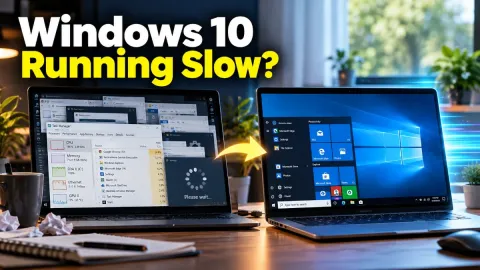
A sluggish computer can disrupt your workflow and turn simple tasks into frustrating experiences. If your system has become unresponsive, identifying the root cause is the fastest way to restore peak performance.
1Check Task Manager for Resource Hogs
When your computer begins to crawl, the most immediate step is to find out which applications or background processes are consuming your system resources. Press Ctrl + Shift + Esc to open the Task Manager directly. Once the window opens, click on the Processes tab and look at the CPU, Memory, and Disk columns. If any single process is consistently utilizing close to 100% of a resource, it is likely the culprit causing your sluggish performance. You can right-click the offending application and select End Task to immediately stop it. However, be cautious not to terminate critical Windows processes like Windows Explorer or system services, as this can cause your system to behave erratically. If you notice a browser tab or a third-party app constantly spiking your CPU, consider updating the software or finding an alternative. Understanding what consumes your hardware power gives you direct control over sudden slowdowns and helps you pinpoint faulty software before it brings your workflow to a complete halt.
2Disable Unnecessary Startup Programs
Many applications automatically configure themselves to launch the moment you turn on your computer, silently draining your system memory and background processing power before you even open a single program. To reclaim these valuable resources, open the Task Manager using Ctrl + Shift + Esc and navigate to the Startup apps tab, represented by a speedometer or gauge icon. Here, you will see a comprehensive list of every program scheduled to run at boot. Review the list carefully, paying special attention to the Startup impact column, which rates each application as High, Medium, Low, or Not measured. Right-click any app you do not need running immediately and select Disable. Do not worry; disabling an app here does not uninstall it or prevent you from opening it manually later. By trimming down your startup list, your PC will boot up significantly faster and keep your background resource usage low from the moment you log into your user account.
3Clean Up Temporary and Junk Files
Over time, Windows accumulates a massive amount of temporary files, cache data, and installation remnants that consume disk space and can degrade read and write speeds, especially if your operating system is installed on a traditional hard drive or a nearly full solid-state drive. To clear out this digital clutter safely, navigate to Settings > System > Storage. From this menu, click on Temporary files to let Windows scan your system for safe-to-delete items such as previous Windows installation files, thumbnails, error reports, and delivery optimization files. Once the scan is complete, check the boxes next to the categories you wish to remove and click Remove files. Keeping your primary drive clean ensures that the operating system has adequate free space to use as virtual memory, which is essential for maintaining smooth multitasking and preventing system stuttering during heavy workloads.
4Update Windows and Graphics Drivers
Outdated system software and graphics drivers are frequent culprits behind mysterious lag spikes, poor gaming performance, and general system instability. Microsoft regularly pushes out performance patches and security updates that resolve known bugs affecting system speed. To check for pending updates, go to Settings > Windows Update and click Check for updates. Allow your system to download and install any available packages, then restart your computer if prompted. Additionally, outdated graphics drivers can cause severe interface sluggishness and rendering delays. If you are using dedicated graphics hardware, open your manufacturer's control software, such as GeForce Experience or AMD Software, to install the latest driver version. Keeping your drivers and operating system fully updated ensures hardware components communicate efficiently, maximizing your computer's speed and reliability during everyday tasks.
5Adjust Visual Effects for Performance
Windows features numerous animations, drop shadows, and transparent visual effects designed to make the user interface look sleek and modern. However, these graphical enhancements consume GPU and CPU cycles, which can significantly impact performance on older or budget-conscious hardware configurations. If your computer feels sluggish when opening windows or switching between apps, simplifying these visuals can provide an immediate speed boost. To adjust these settings, press the Windows Key, type sysdm.cpl, and press Enter to open System Properties. Go to the Advanced tab, click the Settings button under the Performance section, and select the Visual Effects tab. You can choose Adjust for best performance to disable all non-essential animations, or manually uncheck specific elements like Fade or slide menus into view and Enable transparent glass. This simple tweak reduces graphical overhead and makes window navigation feel snappy.
6Check for Malware and Background Scans
A hidden malware infection, crypto-miner, or aggressive adware program can quietly hijack your system resources, causing severe lag and high temperatures even when you are not actively using any demanding applications. To ensure your computer is clean, use the built-in Windows Security tool. Open the Start menu, type Windows Security, and open the app. Navigate to Virus & threat protection > Scan options, select Full scan, and click Scan now. This comprehensive scan will check every file and running process for malicious software. If any threats are detected, follow the on-screen prompts to quarantine and remove them. Additionally, ensure that third-party antivirus suites are not running overlapping background scans simultaneously, as multiple security programs clashing can bring a powerful PC to a crawl. Running regular maintenance scans keeps your system secure and prevents unauthorized background tasks from stealing your performance.
The bottom line
Fixing a slow PC does not always require purchasing expensive hardware upgrades. By systematically checking background resource usage, managing startup applications, clearing junk files, updating drivers, and optimizing visual settings, you can restore your computer's responsiveness and enjoy a seamless daily computing experience.
Frequently asked questions
How much free space should I keep on my C drive?
It is recommended to keep at least 15% to 20% of your primary drive free to allow Windows enough breathing room for virtual memory paging and file organization.
Will disabling startup apps delete them from my computer?
No, disabling a startup app simply prevents it from launching automatically when you turn on your PC. You can still open it manually whenever you need it.
Should I use third-party PC cleaner software?
Built-in tools like Windows Storage Sense are usually sufficient and safe. If you use third-party tools like BleachBit, make sure not to clear necessary browser sessions or registry keys blindly.
How often should I restart my PC?
Restarting your computer once a week helps clear RAM, finish pending updates, and resolve temporary background glitches that accumulate over time.
Can adding more RAM fix a slow PC?
If your Task Manager constantly shows memory usage above 85% during normal tasks, upgrading your RAM will provide a substantial performance boost.