How to Fix Windows 10 Black Screen With Cursor
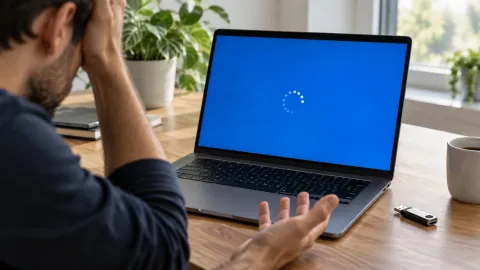
Seeing a black screen with only a moveable white cursor on your Windows 10 computer is a common but frustrating experience. This issue typically indicates that the Windows operating system has successfully loaded its core components and recognized your input device, but the user interface shell—known as Windows Explorer—has failed to launch. In most cases, this is caused by a hung process, a corrupted graphics driver, or a conflict following a system update.
Because the cursor is visible, your hardware is likely functioning correctly, which means the fix usually involves software-side troubleshooting. This guide will walk you through several professional-grade methods to restore your desktop, ranging from quick keyboard shortcuts to deeper system repairs in Safe Mode. By following these steps in order, you can identify whether the problem is a simple software glitch or a deeper driver incompatibility.
Try Initial Keyboard Shortcuts to Reset the Display
Restart Windows Explorer via Task Manager
explorer.exe in the box and press Enter. This command forces Windows to reload the taskbar, Start menu, and desktop wallpaper. This method is highly effective if the black screen occurred because the shell crashed during the login phase. It is a common mistake to assume the computer is 'broken' when simply restarting this one process would resolve the visibility issue immediately.Enter Safe Mode to Troubleshoot Graphics Drivers
Disable Fast Startup and App Readiness
services.msc, and press Enter. Locate App Readiness in the list, right-click it, and select Properties. Change the Startup type to Disabled. This service prepares apps for use when you first sign in or after an update; if it gets stuck, it prevents the desktop from loading. Disabling it is a safe way to test if it is the culprit behind your startup hang.Repair System Files and Use System Restore
cmd in the Start menu (or via Task Manager's 'Run new task' with administrative privileges). Type sfc /scannow and press Enter. This process may take several minutes to complete as it verifies the integrity of every protected system file.
If SFC finds errors it cannot fix, follow up with the DISM command: DISM /Online /Cleanup-Image /RestoreHealth. This tool connects to Windows Update servers to download clean copies of corrupted files. If software repairs fail, you might need to use a System Restore point to roll your PC back to a time when it was working correctly. In the recovery environment (reached via the three-reboot method), go to Troubleshoot > Advanced options > System Restore. Choose a date before the black screen issue began. This will not affect your personal files, but it will uninstall any apps or updates installed after that restore point was created.Diagnosing Hardware vs. Software Conflicts
| Symptom | Probable Cause | Recommended Action |
|---|---|---|
| Cursor moves, no icons | Explorer.exe failure | Restart Explorer via Task Manager |
| Black screen after login | Driver conflict or App Readiness | Disable Fast Startup and App Readiness |
| Screen flickers black | Graphics driver instability | Reinstall Display Drivers in Safe Mode |
| No cursor, no backlight | Hardware/Backlight failure | Check physical connections or hardware repair |
Create a New User Account if the Profile is Corrupted
cmd, check Create this task with administrative privileges, and click OK.
In the Command Prompt window, type the following command: net user TechnicalSupport 12345 /add (you can replace 'TechnicalSupport' with any name and '12345' with your desired password). Then, type net localgroup administrators TechnicalSupport /add to give the new account admin rights. Press Ctrl + Alt + Del and sign out of your current account, then sign in with the new one. If the new account loads the desktop perfectly, you know the issue is specific to your old profile. You can then migrate your files from C:\Users\OldAccountName to the new folder and continue using your PC without a full reinstall.The bottom line
Fixing the Windows 10 black screen with cursor usually requires a systematic approach to identifying which software component has failed. By starting with simple shortcuts like Win+Ctrl+Shift+B and moving toward Safe Mode driver uninstalls or profile creation, you can resolve the vast majority of these cases without losing your data. If all software steps fail, consider performing a 'Reset this PC' from the recovery menu to refresh the entire operating system while keeping your personal files intact.
Frequently asked questions
Why can I see my mouse but everything else is black?
This happens because the Windows kernel and graphics drivers have loaded, but the 'shell' (the desktop environment and taskbar) failed to start. It is usually caused by a crash in the explorer.exe process or a service that is hanging during the login phase.
Will I lose my files if I fix a black screen with cursor?
No, most fixes for this issue—including restarting Explorer, updating drivers, and using System Restore—do not delete your personal files. Even if you have to create a new user account, your original files remain accessible on the hard drive.
What if Task Manager won't open on the black screen?
If Ctrl+Shift+Esc doesn't work, try the hard reboot method to enter the Windows Recovery Environment (WinRE). From there, you can use Startup Repair or enter Safe Mode to troubleshoot the cause of the total system hang.
Can a Windows Update cause a black screen with cursor?
Yes, updates occasionally install incompatible drivers or fail to properly update the registry for the user shell. If the problem started immediately after an update, uninstalling the latest 'Quality Update' from the Advanced Startup menu is a common solution.