Why Is My Windows 11 Laptop So Slow? 8 Ways to Fix It
A slow Windows 11 laptop usually results from a combination of excessive background processes, fragmented storage, or inefficient power settings. As Windows 11 has evolved into its 2026 iterations, the integration of advanced AI features and complex background services can sometimes tax even modern hardware, leading to noticeable lag or stuttering during daily tasks.
Identifying the root cause is the first step toward restoring your device's speed. Whether the slowdown is caused by thermal throttling, outdated drivers, or resource-heavy startup applications, most performance issues can be resolved through built-in system tools and configuration tweaks without needing to purchase new hardware.
Excessive Background AI and System Services
In 2026, Windows 11 relies heavily on integrated AI services to power features like real-time translation, generative search, and predictive task management. While these features are designed to improve productivity, they can consume significant CPU and NPU (Neural Processing Unit) cycles in the background. If your laptop feels sluggish even when no apps are open, these background processes are often the culprit.
To investigate, press Ctrl + Shift + Esc to open the Task Manager. Click on the Processes tab and sort by CPU or Memory. Look for processes associated with system AI or third-party background assistants. If you find that specific AI features you don't use are hogging resources, you can often disable them via Settings > Privacy & security > Generative AI (or the relevant sub-menu for your specific Windows build). Disabling unused telemetry and unnecessary cloud-syncing services can also free up vital system resources for your active applications.
Inefficient Power Mode Configurations
Laptops are designed to balance performance with battery life, but Windows 11 sometimes defaults to an overly aggressive power-saving mode that throttles the processor speed. This is especially common when the laptop is unplugged, but it can persist even when connected to AC power if the settings were previously modified. When your processor is running at a fraction of its maximum clock speed, the entire interface will feel delayed.
To fix this, navigate to Settings > System > Power & battery. Look for the Power mode dropdown menu and select Best performance. Note that this will decrease battery life if you are on the go, but it is essential for heavy multitasking or gaming. If you are using a gaming laptop, also check the manufacturer's proprietary software (like Lenovo Vantage or Alienware Command Center), as these often override Windows settings with their own performance profiles. Ensuring that your laptop is not stuck in a 'Quiet' or 'Battery Saver' mode while you are trying to perform intensive work is a quick and effective performance win.
Managing Resource-Heavy Startup Applications
One of the most frequent reasons for a slow Windows 11 laptop is a cluttered startup list. Many applications, such as communication tools, cloud storage clients, and peripheral managers, automatically set themselves to launch the moment you log in. This not only increases the time it takes for your laptop to become usable after boot but also leaves a trail of 'ghost' processes that continue to eat up RAM throughout the day.
To manage these, go to Settings > Apps > Startup. Review the list and toggle off any apps that you do not need immediately upon booting. Pay close attention to the impact rating next to each app; those marked as 'High impact' are the priority for disabling. A common mistake is leaving multiple cloud services (like OneDrive, Dropbox, and Google Drive) all syncing simultaneously at startup. By manually launching these apps only when you need them, you can significantly reduce the strain on your system memory and disk bandwidth.
Storage Fragmentation and Low Disk Space
Windows 11 requires a certain amount of 'breathing room' on your primary drive to handle temporary files, system updates, and virtual memory (the page file). If your SSD or NVMe drive is more than 80-90% full, you will likely experience a severe drop in performance. This happens because the drive controller struggles to find empty blocks to write data, leading to a phenomenon known as write amplification and general system stutter.
Use the built-in Storage Sense feature to automate the cleanup of unnecessary files. Navigate to Settings > System > Storage and toggle Storage Sense to On. You can also click on Cleanup recommendations to see a list of large or unused files, previous Windows installations, and temporary internet files that can be safely deleted. For laptops that have been in use for several years, ensuring that the drive is healthy is also vital. Use the table below to understand how different storage levels affect performance:
| Storage Capacity Used | Performance Impact | Recommended Action |
|---|---|---|
| Under 70% | Optimal | None; continue regular maintenance. |
| 70% - 85% | Noticeable slowdowns | Run Storage Sense and delete large downloads. |
| Over 90% | Critical lag/errors | Move large media files to external storage immediately. |
Visual Effects and Transparency Overhead
Windows 11 is visually demanding, featuring glass-like transparency (Mica effect), animations, and rounded corners that require constant GPU rendering. On laptops with integrated graphics or older hardware, these aesthetic flourishes can cause the UI to feel sluggish. While they look modern, they are not essential for functionality and can be sacrificed to gain speed.
To streamline the UI, go to Settings > Accessibility > Visual effects. Turn off Transparency effects and Animation effects. If the system still feels slow, you can go a step further by searching for 'Adjust the appearance and performance of Windows' in the Start menu. In the window that appears, select Adjust for best performance. This will revert the OS to a more basic look but will drastically reduce the load on your graphics chip, making windows snap open instantly and reducing input lag when moving files or browsing complex web pages.
Thermal Throttling and Hardware Heat
Laptops are highly susceptible to heat because their components are packed into a very small space. When the CPU or GPU reaches a certain temperature threshold, the system automatically slows down its performance to prevent permanent hardware damage. This is called thermal throttling. If your laptop starts fast but slows down after 20 minutes of use, heat is almost certainly the cause. This is often exacerbated by dust buildup in the cooling fans or blocking the air vents with soft surfaces like blankets or pillows.
First, ensure your laptop is on a hard, flat surface to allow for proper airflow. You can use a utility like HWMonitor to check your internal temperatures; if you see idle temperatures above 60°C or load temperatures hitting 90-100°C, your laptop is throttling. If you are comfortable doing so, using a can of compressed air to blow out the dust from the side and bottom vents can work wonders. In more extreme cases, the internal thermal paste may have dried out, requiring professional servicing to restore efficient heat transfer from the chips to the cooling pipes.
Outdated Drivers and Firmware Conflicts
Software hardware communication is handled by drivers. If your chipset, graphics, or storage drivers are outdated, they may not be optimized for the latest version of Windows 11. This can lead to memory leaks or inefficient power usage. While Windows Update handles many driver updates, it often misses the specific firmware (BIOS/UEFI) updates provided by your laptop manufacturer that address system-level stability and speed.
Check Settings > Windows Update > Advanced options > Optional updates to see if there are driver updates waiting. Additionally, visit your manufacturer’s support website (e.g., Dell, HP, ASUS) and download their official update assistant. These tools can scan for BIOS updates that improve how the motherboard manages power and heat. Keeping your BIOS current is one of the most overlooked steps in laptop maintenance and can often resolve mysterious 'hangups' that standard software fixes cannot touch.
Memory Management and Virtual RAM Expansion
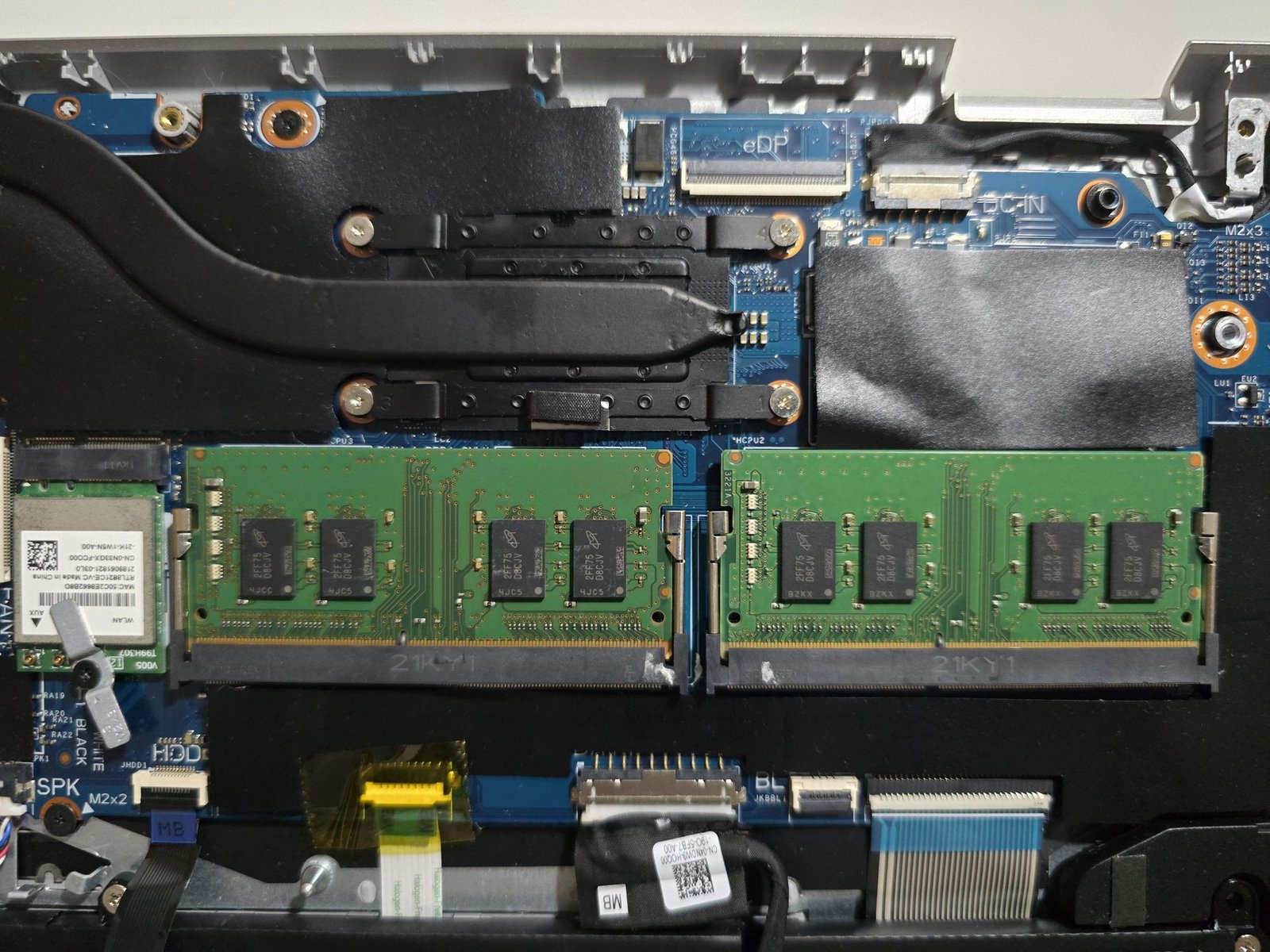
If you frequently run out of physical RAM (Random Access Memory), Windows 11 begins using a portion of your SSD as 'Virtual RAM' (the Page File). Because even the fastest SSD is significantly slower than RAM, this transition causes the system to 'hitch' or freeze momentarily. In 2026, 16GB of RAM is considered the baseline for a smooth Windows 11 experience; if your laptop has only 8GB, you are likely hitting this ceiling constantly.
You can optimize how Windows handles this by ensuring your Page File is managed correctly. Search for 'View advanced system settings' in the Start menu. Under the Advanced tab, click Settings in the Performance section, then go to the Advanced tab again and click Change under Virtual memory. Ensure that Automatically manage paging file size for all drives is checked. If your laptop allows for hardware upgrades, adding an extra stick of RAM is the single most effective hardware upgrade you can make to eliminate lag in modern versions of Windows 11.
The bottom line
A slow Windows 11 laptop is rarely caused by a single issue but rather a combination of software bloat, thermal constraints, and unoptimized settings. By systematically managing your startup apps, adjusting power profiles, and ensuring your hardware remains cool, you can significantly extend the life and speed of your machine. Regular maintenance, such as using Storage Sense and keeping drivers updated, will ensure your laptop remains responsive throughout 2026 and beyond.
Frequently asked questions
Does Windows 11 run slower than Windows 10 on the same laptop?
Generally, Windows 11 has higher system requirements due to its advanced security and AI features. On older hardware that barely meets the minimum specs, it may feel slower. However, on modern hardware supported by the 2026 updates, Windows 11 is optimized for better scheduler efficiency and wake times compared to older versions.
Can a virus make my Windows 11 laptop slow?
Yes, malware and unwanted 'PUPs' (Potentially Unwanted Programs) can consume significant CPU and disk resources. If your laptop is suddenly slow and you notice unusual pop-ups or high network activity, run a full scan using Windows Security or the Microsoft Safety Scanner.
Should I use a 'PC Booster' or 'Registry Cleaner' app?
No, most third-party 'boosters' are unnecessary and can sometimes be harmful. Windows 11 has built-in tools like Storage Sense and Task Manager that perform these functions more safely. Registry cleaners, in particular, rarely improve speed and can cause system instability.
Why is my laptop slow only when it is charging?
This is usually due to heat. Charging the battery generates significant thermal energy. If your laptop is already running hot, the added heat from charging can trigger thermal throttling. Ensure the laptop is on a hard surface and the vents are clear while charging.
Is 8GB of RAM enough for Windows 11 in 2026?
While 8GB is the minimum for basic tasks, it is often insufficient for smooth multitasking in 2026. Browsers with many tabs, background AI services, and office suites will quickly consume 8GB, leading to sluggish performance. Upgrading to 16GB is highly recommended for a fluid experience.