Why Is Your AirPods So Quiet and How to Fix It
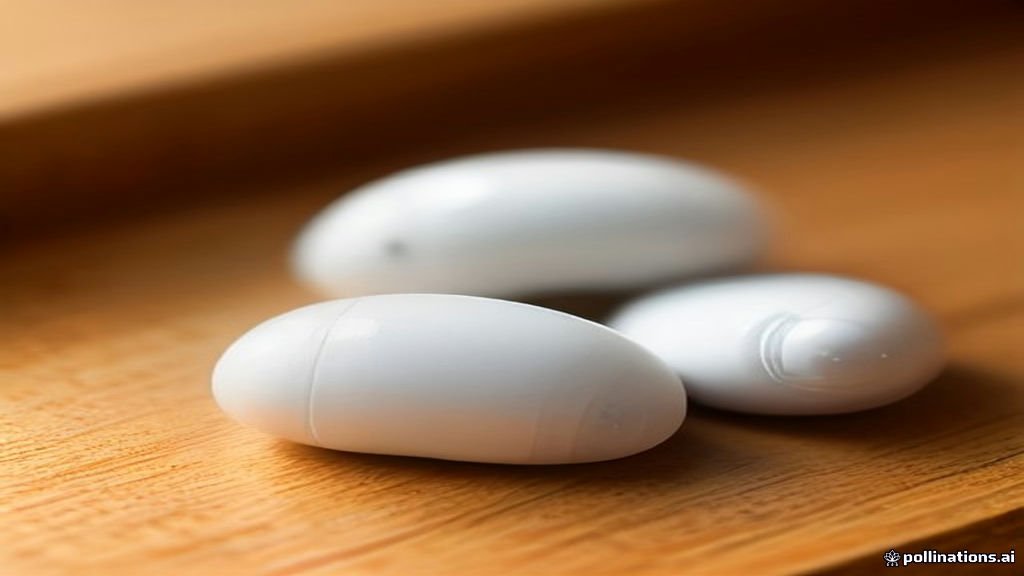
When your AirPods suddenly sound muffled or lack their usual punch, it is an exceptionally frustrating experience. Fortunately, identifying the root cause allows you to apply the right fix and restore your audio quality quickly.
Understanding Why AirPods Lose Volume Over Time
When your AirPods suddenly sound muffled or lack their usual punch, it is frustrating. Often, this drop in volume happens gradually due to physical obstructions, software glitches, or incorrect audio settings on your paired iPhone or Mac. Understanding the root cause helps you apply the right fix without unnecessary hassle. Common physical culprits include a buildup of earwax and lint inside the tiny speaker grilles, which blocks sound waves before they reach your eardrums. On the software side, iOS features designed to protect your hearing, such as Headphone Safety and Reduce Loud Sounds, can automatically cap your maximum volume output. Additionally, firmware desynchronization or a minor Bluetooth pairing glitch can cause your iPhone to miscommunicate the actual volume level to your earbuds. By checking these hardware and software factors systematically, you can quickly diagnose whether your AirPods require a physical cleaning, a quick settings adjustment, or a full factory reset.
Cleaning Earwax and Debris From Speaker Grilles
Physical buildup is the single most frequent reason AirPods lose volume. Over weeks of daily use, earwax, dead skin cells, and pocket lint accumulate inside the primary speaker mesh and the secondary inner vent. Because the clearances are microscopic, even a thin layer of debris acts like a sound barrier, dramatically muffling audio output and making your music or calls sound distant and quiet. To clean them safely without damaging the delicate internal drivers, you need the right tools. Grab a clean, dry, soft-bristled toothbrush, a toothpick or interdental brush, and a microfiber cloth. Gently brush away loosened wax from the metal mesh, taking care not to push debris deeper into the cavity. For stubborn residue, lightly dampen a microfiber cloth with water or isopropyl alcohol—never submerge your AirPods in liquid. Once cleaned, let them air dry completely for at least thirty minutes before placing them back in the charging case or your ears. You will often notice an immediate restoration in volume and clarity once the grilles are completely clear.
Checking Volume Limits and Headphone Safety Settings
Adjusting Audio Balance and Headphone Accommodations
Resetting and Re-pairing Your AirPods
Updating Firmware and Testing With Another Device
If your AirPods remain suspiciously quiet after completing all physical and software troubleshooting steps, testing them with an entirely different device is essential for isolating the problem. Connect your AirPods to a secondary iPhone, an iPad, an Android phone, or a Mac computer. If the audio is loud and clear on the second device, your primary iPhone's bluetooth volume sync or audio driver cache is likely corrupted, requiring a restart or network settings reset on your phone. Conversely, if the AirPods remain quiet across all devices, the internal amplifier or speaker drivers have likely suffered hardware degradation or physical damage. In this scenario, your best course of action is to contact Apple Support or visit an Apple Store to check your warranty status or explore repair options. Knowing whether the failure stems from your phone or the hardware itself saves you time and prevents frustration.
The bottom line
Fixing quiet AirPods usually comes down to thorough physical cleaning, checking iOS hearing safety limits, or performing a simple factory reset. By systematically evaluating these potential causes, you can restore full volume and enjoy crisp audio once again.
Frequently asked questions
Why is only one of my AirPods quiet?
This is usually caused by localized earwax buildup in the quieter earbud or an unbalanced stereo slider in your iPhone accessibility settings.
Can cleaning earwax really fix quiet AirPods?
Yes. Earwax buildup inside the micro-mesh grille blocks sound waves entirely, so cleaning it often restores original volume instantly.
How do I know if my iPhone is limiting my AirPods volume?
Check your Headphone Safety settings under Sounds & Haptics in iOS to see if Reduce Loud Sounds or volume capping is enabled.
Do AirPods lose maximum volume over time due to battery wear?
Severe battery degradation can affect power delivery to the internal amplifiers, leading to lower maximum volume output over several years.
How often should I clean my AirPods speaker grilles?
It is recommended to gently wipe and clean your AirPods speaker grilles every two to four weeks depending on daily usage.