How to Fix a Laptop That Only Works When Plugged In
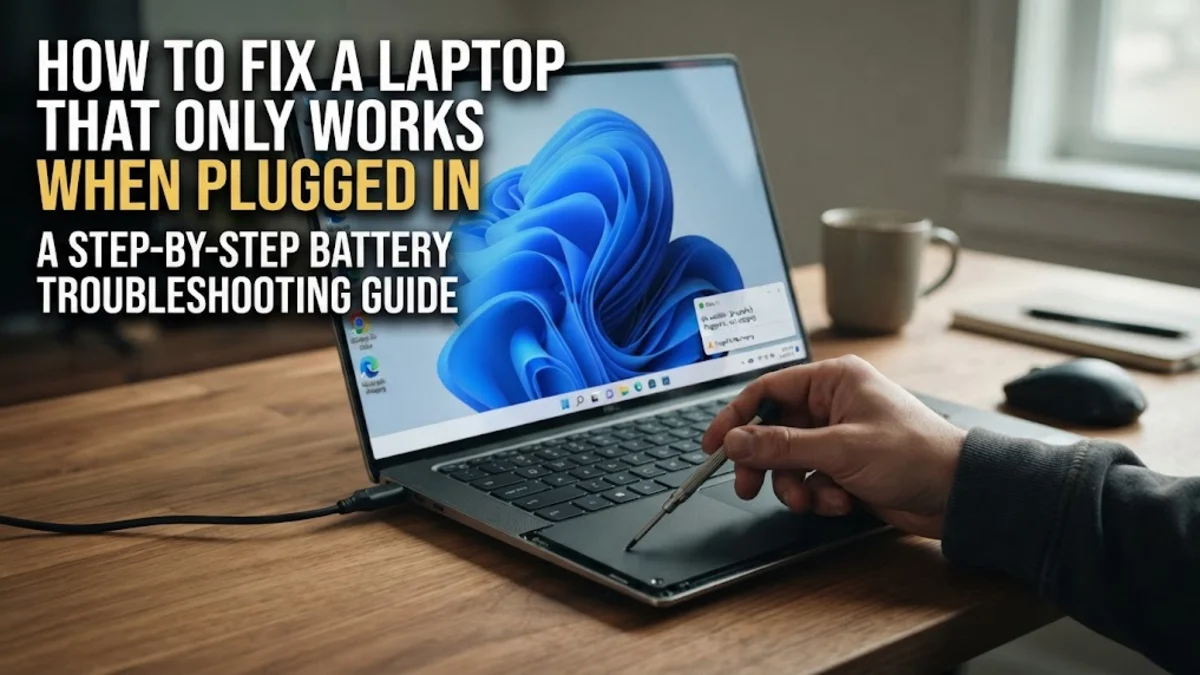
If your laptop immediately dies the moment you unplug the power cord, you are dealing with a frustrating power delivery issue. This typically points to a failing battery, a faulty charging circuit, or a poor power connection between the internal battery and the motherboard.
Fortunately, you can troubleshoot and often resolve this issue at home without rushing straight to a repair shop. Let's walk through the exact steps to identify the root cause and get your machine running independently on battery power again.
Check Battery Health in Windows
Before tearing your laptop apart or buying replacement parts, you need to verify whether Windows even recognizes your battery and what condition it is in. Open the Command Prompt as an administrator by typing cmd in the Windows search bar, right-clicking the result, and selecting Run as administrator. Type the command powercfg /batteryreport and press Enter. This generates an HTML report saved in your user folder.
Navigate to your user folder in File Explorer, open battery-report.html in your web browser, and look at the designed capacity versus the full charge capacity. If the full charge capacity is zero or extremely low, your battery has reached the end of its lifespan and cannot hold a charge. If the report shows that no battery is detected at all, you are likely dealing with a physical connection failure or a completely dead cell that the system refuses to engage.
Perform a Complete Power Reset
Static electricity and corrupted power states in the embedded controller can trick your laptop into thinking the battery is missing or faulty. To clear these residual charges, shut down your computer completely and unplug the power adapter. Disconnect all external USB devices, mouse dongles, and external monitors. If your laptop has a removable external battery, slide the latches and take the battery out.
Press and hold the laptop power button continuously for 40 to 60 seconds. This drains any remaining electrical charge from the capacitors on the motherboard and resets the power management system. If your laptop has a non-removable internal battery, you will still perform the same long power button hold while unplugged. Reconnect only the power charger and turn the machine back on, then check if the battery indicator light begins blinking or shows charging activity in the system tray.
Reinstall Battery Drivers in Device Manager
Corrupted or outdated ACPI drivers can prevent Windows from communicating properly with your hardware, causing the system to ignore the battery entirely when the AC adapter is disconnected. Right-click the Windows Start button and select Device Manager from the menu. Expand the Batteries category in the device list. You should see entries such as Microsoft AC Adapter and Microsoft ACPI-Compliant Control Method Battery.
Right-click the Microsoft ACPI-Compliant Control Method Battery and select Uninstall device. Confirm the uninstallation when prompted. Do not worry; Windows will automatically reinstall this driver the next time you reboot. Once uninstalled, restart your laptop while plugged into power. Windows will detect the hardware configuration fresh and rebuild the driver stack, which frequently resolves sudden battery recognition glitches.
Inspect Physical Battery Connections
If you have dropped your laptop recently or if it has experienced vibrations, the internal battery cable or connector might have shaken loose from the motherboard. If you feel comfortable opening your laptop casing, power down the machine, unplug it, and remove the bottom panel using a precision screwdriver set. Locate the battery connector where the ribbon cable or plug attaches to the motherboard.
Carefully unplug the battery connector, inspect the pins for any dust or corrosion, and firmly plug it back in, ensuring it clicks securely into place. Make sure the locking latch on the connector is fully closed. Reassemble the laptop cover, plug in the charger, and boot up. Once the system is running, try unplugging the power cord to see if the internal connection is now stable.
Run the Built-in Power Troubleshooter
Windows includes specialized automated troubleshooters designed to diagnose common hardware and power configuration issues. Open your system settings by pressing Windows Key + I. Navigate to System > Troubleshoot > Other troubleshooters. Scroll down until you find the Power troubleshooter and click the Run button next to it.
The utility will scan your power plan settings, screen timeout configurations, and sleep timers to detect anomalies that might be forcing the system to shut down prematurely. If the troubleshooter detects any misconfigured registry keys or power schemes, it will automatically apply a fix or prompt you to approve the recommended changes. Restart your PC after the scan completes to verify if normal battery operation has been restored.
Update Your BIOS and Chipset Firmware
Outdated motherboard firmware can sometimes mismanage power delivery profiles, resulting in charging failures or sudden shutdowns when running on DC power. Visit your laptop manufacturer's official support website, enter your specific laptop model serial number, and check the available downloads for a newer BIOS or UEFI firmware version.
Download the official flashing utility while your laptop is securely plugged into a stable wall outlet. Follow the manufacturer instructions carefully to update your BIOS. Note that you should never interrupt a BIOS update or let your laptop lose power during the process. Once updated, the system firmware will have the latest power delivery tables and hardware compatibility patches required to keep your battery functioning correctly.
The bottom line
Troubleshooting a laptop that only works when plugged in requires checking both software elements like drivers and hardware factors like battery health. By methodically running a battery report, performing a hard power reset, and reseating internal connections, you can pinpoint the exact cause and determine if you simply need a software fix or a brand-new battery replacement.
Frequently asked questions
Can a bad charger cause my laptop to turn off when unplugged?
Yes, a failing charger might supply just enough power to run the motherboard and screen while plugged in, but fail to deliver any current to charge the battery, leaving you with a dead battery.
How do I know if my laptop battery is completely dead?
Run a battery report via Command Prompt or check if the battery percentage stays at zero percent constantly despite being plugged in for hours, which usually indicates dead internal cells.
Is it safe to use my laptop without a battery while plugged into the wall?
Most modern laptops can run directly on AC power without a battery, but sudden power outages will cause an immediate shutdown and potential data loss since there is no backup power.
Why does my laptop battery icon show plugged in, charging, but never increases?
This is often caused by a corrupt ACPI battery driver or a faulty charging circuit on the motherboard that fails to regulate electrical current flow into the battery pack.