How to ChatGPT a Photo for Work and Study
Learning how to chatgpt a photo opens up powerful new ways to analyze visual data, extract handwritten notes, and interpret complex diagrams for work and study. By leveraging modern multimodal artificial intelligence, you can turn any image into an interactive learning resource or a source of actionable insights within seconds.
Preparing and Uploading Your Image to ChatGPT
Learning how to chatgpt a photo starts with selecting the right file and knowing how to upload it correctly into the interface. Whether you are using a desktop browser or the mobile app, the process is straightforward. First, ensure your photo is clear, well-lit, and focused on the subject you want to analyze. Blurry images or poor lighting can cause the vision model to misread text or misinterpret visual data. To upload your image on a computer, click the paperclip icon or image icon near the chat input box, select your file from your local drive, and attach it. On mobile devices, tap the plus icon or camera icon directly within the chat box to either snap a fresh photo or choose an existing one from your gallery. Supported image formats generally include standard web formats like JPEG, PNG, WEBP, and non-animated GIF files. Once attached, you can type your prompt right alongside the image before hitting send. Taking a moment to check your file type and image clarity ensures that ChatGPT processes your request accurately on the very first try without throwing format or processing errors.
Extracting Text and Transcribing Handwritten Notes
One of the most powerful everyday uses for image analysis is turning physical documents or handwritten notes into editable digital text. If you have lecture notes scribbled in a notebook or a page from a physical textbook, you can easily capture it with your camera and ask ChatGPT to transcribe it. To do this, upload the photo and write a clear instruction such as, Please transcribe the handwritten text in this image into clean bullet points. The multimodal vision engine scans the handwriting, recognizes cursive or print styles, and formats the output into readable text. This saves hours of manual typing when you are compiling study guides or archiving meeting minutes. If the handwriting is exceptionally messy, you can guide the AI by adding context in your prompt, such as telling it that the notes are about chemistry or history, which helps the model make accurate guesses on obscure technical terms. You can also ask it to clean up grammatical errors or structure the transcribed notes into professional summaries ready for your reports or assignments.
Analyzing Charts, Graphs, and Diagrams
Working with complex data visualizations often requires a deep understanding of trends, axes, and numerical distributions. When you encounter a confusing financial chart, a scientific diagram, or a marketing graph, you can upload the image to break down the information instantly. Start by attaching the image file into your chat session, then ask specific analytical questions like, What is the main trend shown in this sales chart between 2024 and 2026? or Explain the components of this cell diagram in simple terms. ChatGPT will inspect the labels, legends, and data points to provide a comprehensive breakdown. This capability is especially helpful for professionals reviewing quarterly reports or students studying technical subjects who need quick, reliable explanations without manually parsing every data point. For best results, ensure the axes labels and legends are clearly visible in the uploaded photo. If a chart is too wide or contains very small text, consider cropping the image to focus tightly on the specific section you want to analyze before uploading it to the platform.
Writing Effective Prompts for Image Analysis
Getting precise results when you chatgpt a photo depends heavily on how you phrase your accompanying prompt. Vague prompts like What is this? often yield overly broad or generic answers that require multiple follow-up questions. Instead, tailor your instructions to match your exact objective, whether you want a summary, a translation, or a step-by-step explanation. For example, if you upload a photo of a foreign street sign or document, write, Translate the French text in this image into English and explain any local idioms used. If you are tackling a math problem written on a whiteboard, prompt the model with, Solve the equation shown in this image and explain each mathematical step clearly. Providing context upfront helps the AI narrow down its focus, saving you time and ensuring the output meets your academic or professional needs. You can also specify the desired output format, such as asking for a markdown table, a numbered list, or a concise paragraph, ensuring the response matches the structure you need for your project.
Troubleshooting Common Image Upload and Processing Errors
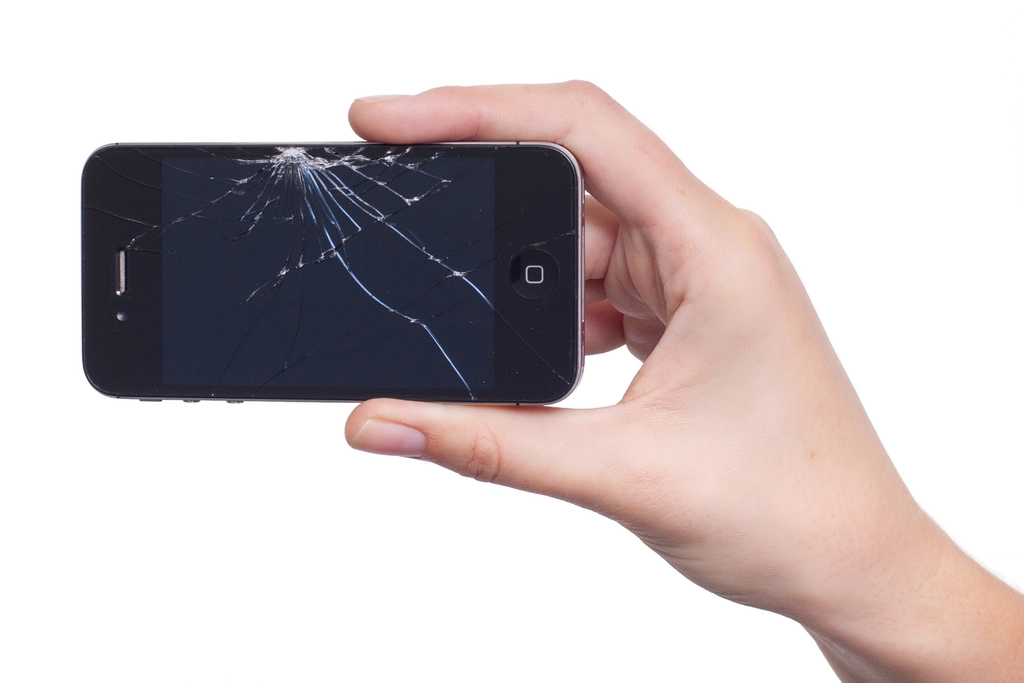
Occasionally, you might encounter technical hiccups when trying to analyze photos, such as upload failures, format rejection errors, or frozen response states. The most common cause of upload failure is exceeding the maximum file size limit imposed by the platform. If your image is an extremely high-resolution smartphone photo that exceeds twenty megabytes, use a basic compression tool or crop the image to reduce its file size before trying again. Another frequent issue involves unsupported file types, such as HEIC files directly from certain mobile devices that may not convert automatically in older browser versions. In such cases, convert the image to JPEG or PNG prior to uploading. If ChatGPT stops responding or displays a network error midway through processing a heavy image, check your internet connection stability and refresh the application interface. Clearing your browser cache or restarting the mobile app usually resolves temporary glitches, allowing you to resume your workflow quickly and without losing your previous chat history.
The bottom line
Mastering how to chatgpt a photo transforms your device into an intelligent assistant capable of handling text extraction, data analysis, and visual problem-solving. By preparing clear images, writing precise prompts, and following proper troubleshooting steps, you can significantly enhance your daily productivity and study workflow.
Frequently asked questions
Can I use ChatGPT to analyze photos on the free tier?
Yes, free users can upload photos and use image analysis features, though certain limits on the number of image uploads per hour or day may apply depending on current platform updates.
What image formats does ChatGPT support for uploads?
ChatGPT supports standard image formats including JPEG, PNG, WEBP, and non-animated GIF files across both desktop and mobile applications.
Is it safe to upload private or sensitive photos to ChatGPT?
You should avoid uploading highly sensitive personal data, financial documents, or confidential workplace information unless your account privacy settings and data controls are configured to restrict model training on your inputs.
How large can the image file be when uploading?
While individual file limits can vary, it is best to keep image sizes under 20 megabytes and compress extremely high-resolution photos to prevent upload timeouts.