How to Fix a Google Pixel That Won't Charge
If your Google Pixel refuses to charge when plugged into an outlet, the issue is usually caused by physical lint buildup in the USB-C port, a faulty cable, or a temporary software glitch. Fortunately, most charging failures can be resolved at home without needing an immediate hardware repair.
Clean Out the USB-C Charging Port
Debris, pocket lint, and dust easily accumulate inside the USB-C charging port of your Google Pixel over time. When you plug in your charging cable, this lint gets compressed at the bottom of the port, preventing the metal pins on the cable from making full electrical contact with the internal connectors. To check for this, take a bright flashlight and peer closely inside the port. If you notice packed gray or black fuzz, you need to clean it out very carefully. Turn off your phone completely before attempting any physical cleaning to prevent short-circuiting the motherboard. Take a wooden toothpick or a non-conductive plastic interdental brush and gently scrape along the interior walls and the center plastic tab. Never use metal objects like a sewing needle or a paperclip, as these can easily bend the delicate connector pins or scratch the circuitry. Once you loosen the debris, blow a short burst of compressed air or use a clean, dry toothbrush to sweep it away. Plug the cable back in and check if it snaps securely into place with a firm click.
Inspect and Test Your Cable and Power Adapter
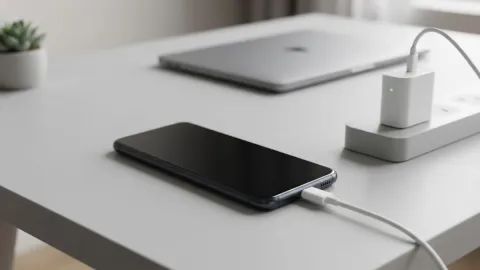
Faulty charging accessories are frequently the hidden culprit behind a Google Pixel that refuses to charge. Wall adapters degrade over time, and USB-C cables suffer from internal wire breakage near the connector heads, even if the exterior rubber looks completely fine. Start by swapping out your current charging brick with a known working wall charger and a different cable to isolate the problem. Ensure that your power adapter supports USB Power Delivery (USB-PD) standards, which modern Pixel devices require for optimal fast charging. If you are plugging your phone into a computer USB port or a cheap third-party power strip, the electrical output might be too weak to register a charge, especially if the battery is fully depleted. Inspect the ends of your USB-C cable for bent pins, burnt discoloration, or corrosion caused by moisture exposure. If the cable or brick feels excessively hot during use or shows visible wear, discard it immediately and replace it with an official Google 30W USB-C charger or a certified equivalent.
Restart Your Google Pixel with a Soft Reset
Boot Your Pixel into Safe Mode to Check for Rogue Apps
Disable Adaptive Charging and Check Battery Usage
Check for System Software Updates
The bottom line
Fixing a Google Pixel that refuses to charge usually comes down to clearing out physical lint and debris from the port or swapping out a damaged cable. By systematically working through these hardware inspections and software troubleshooting steps, you can pinpoint the exact cause and get your device powered up safely.
Frequently asked questions
Can I use wireless charging if my USB-C port is broken?
Yes, if your Google Pixel model supports wireless charging, you can place it on a Qi-compatible wireless charging pad to bypass the physical USB-C port entirely while you arrange for a repair.
Why is my Pixel charging so slowly?
Slow charging is typically caused by using a low-wattage wall adapter, a damaged cable, or having Adaptive Charging enabled. Ensure you use a USB-PD compatible charger rated for at least 30 watts.
Is it safe to clean my Pixel charging port with a needle?
No, metal needles can scratch the internal contacts or puncture the battery components, causing a short circuit. Always use a non-conductive wooden toothpick or plastic tool.
What should I do if my Pixel gets hot while charging?
Unplug the phone immediately. Charging generates normal warmth, but excessive heat indicates a failing battery, a damaged cable, or a short circuit. Let it cool down before trying another cable.
Will a factory reset fix a charging issue?
A factory reset rarely fixes charging issues unless the problem is caused by severe software corruption. Hardware failures and port debris are overwhelmingly the most common culprits.