How to Fix a PC That Won't Turn On
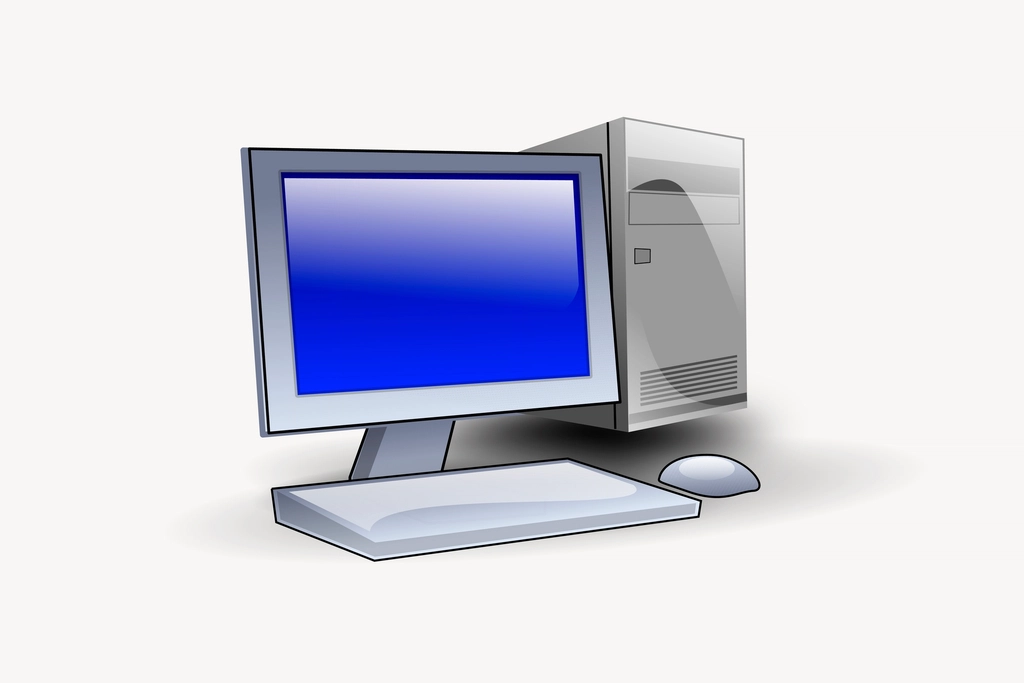
When your desktop computer refuses to show any signs of life, the sudden panic is completely understandable. Whether you pressed the power button and got absolute silence or saw brief flashes of light before everything died, troubleshooting the issue requires a methodical approach starting from the easiest external fixes and moving toward internal hardware checks.
Check Power Source and Connections
When your desktop computer refuses to show any signs of life, the most common culprit is a simple power delivery failure. Start by checking the wall outlet itself. Plug a lamp or another device into the exact same outlet to verify that it is providing electrical current. If the outlet works, inspect the power cable running from the wall to your computer's power supply unit. A loose or damaged cable can completely disrupt the circuit. Ensure the cable is firmly pushed into the back of the PC and that any surge protector or power strip is switched on and functioning properly.
Many surge protectors have built-in circuit breakers that trip during power surges, cutting off electricity entirely. If your surge protector has a reset button, press it firmly to see if power returns to your connected equipment. Furthermore, avoid using ungrounded adapters or faulty extension cords that might drop the voltage below what your computer needs to initiate a successful startup sequence.
Inspect the Power Supply Unit and Switch
After verifying the external power sources, direct your attention to the power supply unit located at the back of your computer case. Look for the physical power switch on the back of the PSU and make sure it is flipped to the 'I' position rather than the 'O' position. If your PSU has a built-in self-test button, press it to check if the internal fan spins and the indicator light turns green, which signals that the unit is functional.
If the PSU lacks this feature, you can perform a simple paperclip test on the 24-pin motherboard connector to see if the fan spins, confirming whether the power supply is dead or alive. Keep in mind that a failing PSU can sometimes deliver erratic voltage, causing the system to refuse to post or turn on intermittently. If you smell ozone or notice a burning odor near the power supply, unplug it immediately and replace the unit.
Test for Motherboard and Front Panel Header Issues
Sometimes the power supply and wall outlet are perfectly fine, but the signal from your computer case power button never reaches the motherboard. Inside your case, the front panel header contains tiny wires that connect the power button to specific pins on the motherboard. If one of these cables has come loose or is plugged into the wrong pins, pressing the power button will do nothing.
You can troubleshoot this by locating the power switch pins on your motherboard, disconnecting the existing case wire, and briefly touching the two pins with the tip of a metal screwdriver to complete the circuit. If the computer springs to life, the issue lies either in the case's power button switch or the wiring, rather than the core internal hardware components.
Reseat RAM Modules and Clear CMOS
Faulty memory seating or corrupted BIOS settings can prevent a computer from posting, sometimes mimicking a complete failure to turn on. Turn off the power switch, unplug the system, and open the side panel of your case. Carefully release the clips on your RAM sticks, pull them out of their slots, and reinsert them firmly until you hear a distinct click.
Next, locate the coin-shaped CR2032 battery on the motherboard, remove it for about five minutes, and then put it back in. This clears the CMOS memory, resetting your BIOS configuration back to factory default states. Clearing the CMOS often resolves stubborn hardware conflicts that stall the boot sequence right at the initial power-on stage.
Disconnect External Peripherals and Graphics Card
External devices or a failing dedicated graphics card can draw too much power or cause a short circuit that trips your power supply protection mechanisms. Disconnect all unnecessary USB devices, external hard drives, printers, and secondary monitors, leaving only the mouse, keyboard, and main display plugged in.
If the computer still fails to turn on, open the case and remove the dedicated graphics card, assuming your processor features integrated graphics. Plug your monitor directly into the motherboard video output port and attempt to boot. A malfunctioning graphics card can easily trigger built-in safety features within the power supply, causing the entire computer to shut down or refuse to power on altogether.
The bottom line
Troubleshooting a PC that won't turn on requires patience and a step-by-step exclusion process. By systematically checking your power cords, power supply, internal connections, and memory modules, you can identify the root cause and get your system working again safely.
Frequently asked questions
Why does my PC fan twitch but not turn on?
This usually indicates that the power supply is detecting a short circuit or failing to deliver steady voltage. It attempts to start, safety features trip, and it immediately shuts down.
Can a dead CMOS battery keep my PC from turning on?
A dead CMOS battery typically causes time resets or boot errors rather than a complete failure to power on, but rare motherboard BIOS corruptions can cause similar symptoms.
How do I know if my power supply is completely dead?
If you test the outlet, swap the power cord, and try jumping the motherboard pins with no fan movement or indicator lights whatsoever, the power supply is likely dead.
Is it safe to test motherboard pins with a screwdriver?
Yes, as long as the PC is unplugged from the wall while you locate the correct power switch pins, gently touching them with an insulated screwdriver to bridge the connection is a safe standard diagnostic technique.