How to Fix Google Account Couldn't Sign In
If you encounter the frustrating google account couldn't sign in error, it usually stems from incorrect credentials, browser glitches, or security verification blocks. Resolving this issue requires checking your internet connection, verifying your login details, and completing secondary authentication prompts.
This guide walks you through the step-by-step troubleshooting process to regain secure access to your Google account quickly and safely without losing your data.
Check Your Internet Connection and Browser Status
Before assuming your account is locked or compromised, ensure your network connection is stable and working properly. A sudden drop in internet connectivity can interrupt the authentication handshake between your browser and Google's servers, triggering unexpected sign-in errors.
Try opening a new tab and loading another reliable website to test your connection. If pages load slowly or fail entirely, restart your Wi-Fi router or switch to a different network. Additionally, check if Google's services are experiencing a temporary outage by visiting a status dashboard. If the servers are down, waiting patiently until Google resolves the issue is your only option. If your network is fine, the problem likely lies within your browser or device settings, meaning you should proceed to clear temporary data or test an alternative web browser.
Verify Your Username and Password Correctly
Typos are among the most common reasons users see the sign-in error message. When entering your email address or phone number, make sure you have not made a simple spelling mistake or included an accidental trailing space. Pay close attention to domain names, ensuring you use standard endings like gmail.com correctly.
When typing your password, verify that your Caps Lock key is not accidentally enabled, as passwords are case-sensitive. If you suspect your password might be wrong but remember a previous variation, avoid making too many rapid incorrect attempts, as this can trigger a temporary security lockout. Instead, take a moment to carefully type the password in a text editor first to check its accuracy before pasting it into the sign-in field. If you still cannot remember the exact combination, prepare to use the official account recovery workflow to reset your credentials securely.
Approve the Sign-In Prompt on Your Trusted Device
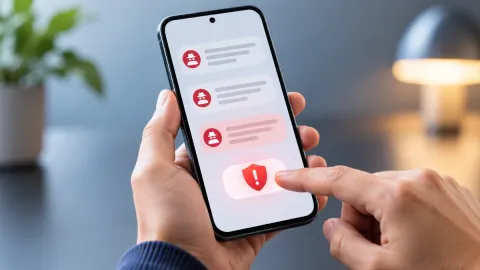
Google frequently requires two-step verification to protect your personal information from unauthorized access. If you have a smartphone or secondary device logged into your Google account, you may need to approve a verification prompt before the current login session can proceed.
Check your smartphone for a notification asking to confirm your login request or requesting you to tap a specific number matching your computer screen. Ensure your phone has an active internet connection, either via mobile data or Wi-Fi, so it can receive the prompt instantly. If notifications are delayed or disabled, open your device settings, navigate to Settings > Google > Manage your Google Account, and check the security tab. You can also choose alternative verification methods, such as receiving a text message with a verification code or using an authenticator app, if your primary device is unavailable.
Clear Browser Cache and Cookies to Resolve Glitches
Corrupted cache files and outdated cookies stored in your web browser can disrupt authentication protocols, causing persistent sign-in loops or error screens. Clearing this stored website data forces your browser to fetch fresh files directly from Google's servers, which frequently resolves lingering login bugs.
To clear cache and cookies in Google Chrome, press Ctrl + Shift + Delete on Windows or Cmd + Shift + Delete on Mac to open the browsing data menu. Select a time range, check the boxes for Cached images and files and Cookies and other site data, and click Clear data. Once completed, restart your browser entirely, navigate back to the sign-in page, and attempt to enter your credentials again. If you prefer not to clear all browsing data, you can test logging in using an Incognito or private browsing window.
Disable Interfering Browser Extensions and VPNs
Third-party browser extensions, ad blockers, privacy enhancers, and virtual private networks can sometimes interfere with Google's security scripts and cookie placement. When security protocols detect unusual IP addresses or blocked tracking scripts from a VPN, Google may flag the login attempt as suspicious and block access.
Temporarily disable any active VPN services or proxy connections and try signing in again from your standard network location. Similarly, turn off aggressive ad blockers or script blockers by clicking their icons in your browser toolbar or opening your browser extension manager via Extensions > Manage Extensions. Toggle off extensions one by one to identify if a specific tool is causing the interference. Once you successfully log into your account, you can re-enable your trusted security extensions, though you may need to whitelist Google domains to prevent future login disruptions.
Recover Your Account If Credentials Are Lost
If none of the troubleshooting steps resolve the issue and you remain locked out, you must initiate Google's official account recovery process. This procedure helps verify your identity when you cannot remember your password or when unusual activity has prompted a security freeze on the profile.
Navigate to the official account support page and enter your email address. Follow the on-screen prompts carefully, answering security questions or confirming access to your recovery phone number and backup email address. It is crucial to use a device and a familiar network location where you have previously successfully signed in, as Google uses this metadata to confirm your ownership. Avoid submitting multiple rapid recovery requests in a short timeframe, as this can delay the automated review process. Once your identity is successfully verified through the recovery prompts, you will be prompted to create a new, strong password for your account.
The bottom line
Encountering sign-in errors can be stressful, but methodically checking your network, browser settings, and verification methods will usually restore access quickly. Always keep your recovery phone number and backup email updated to prevent future lockouts.
Frequently asked questions
Why does Google keep saying my password is wrong when I know it is correct?
This often happens due to keyboard language settings, accidental caps lock, or outdated browser cookies. Try typing your password in a notepad first to verify its accuracy, or clear your browser cache.
What should I do if I lost access to my recovery phone number?
During the recovery process, look for an option that says Try another way to use alternative verification methods, such as a backup email address or answering security questions.
Can a VPN cause my Google account sign-in to fail?
Yes, using a VPN can change your IP address rapidly, triggering automated security safeguards that block sign-in attempts to protect your account from potential unauthorized access.
How long does a temporary Google account lockout last?
Temporary lockouts resulting from too many failed login attempts typically last between a few hours and 24 hours. Waiting out the timer before attempting to sign in again is usually required.