How to Fix Gemini Not Working on Galaxy Watch
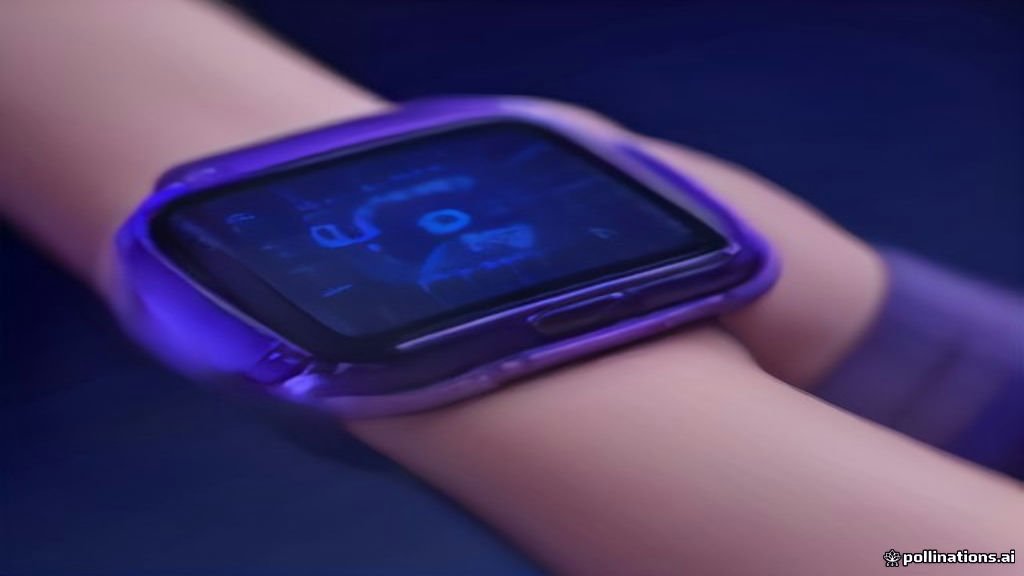
The problem often manifests as a blank screen, a persistent loading animation, or the dreaded Error 13 notification. Because Gemini on Wear OS relies on a constant data bridge with your phone, even minor battery optimization settings or outdated software components can break the connection. This guide covers everything from basic connectivity checks to advanced cache clearing and account re-linking to get your AI assistant back on track.
Why Gemini Fails to Load on Wear OS
When Gemini fails to respond on your Samsung Galaxy Watch, the cause is typically found in the software handshake between the watch and the phone. In 2026, Gemini operates as an extension of the Google app rather than a standalone operating system feature. This means that if the Google app on your phone is hibernating or restricted by Samsung's aggressive background power management, the watch interface will fail to initialize. Additionally, Google requires a perfect match between the primary Google Account on your phone and the one registered to your wearable; any discrepancy here will lead to immediate authentication failures.
Technical glitches like 'Error 13' are often related to regional availability or API timeouts. Even if Gemini is available in your country, your watch might struggle to verify your location if 'Precise Location' permissions are disabled. Furthermore, if you are using a Galaxy Watch 6, 7, or the latest Watch 8, the system may occasionally prioritize the Bixby framework or the legacy Assistant if the default settings were not correctly updated during the initial setup. Identifying whether the issue is a connection drop, a permission denial, or a version mismatch is essential before moving to more intensive fixes like a factory reset.
Check Connection and Account Synchronization
Before diving into complex settings, you must verify the basic communication channel between your devices. Open the Galaxy Wearable app on your phone and ensure the watch status is listed as Connected. If it shows 'Connected via Wi-Fi' or 'Remote connection,' Gemini may struggle with the latency; for the most stable AI performance, a direct Bluetooth connection is preferred. Next, verify that your phone is not in 'Airplane Mode' or that 'Data Saver' is not active, as these modes often throttle the background data transfers required for AI processing.
Account sync is the second most common point of failure. On your Galaxy Watch, navigate to Settings > Google > Accounts. Ensure the email address listed matches the primary account on your paired smartphone. If you have recently changed your Google password, the watch may still be trying to use an expired token. In this case, you should remove the account from the watch via the Galaxy Wearable app under Watch Settings > Account and backup > Google account and then re-add it to refresh the security credentials. This simple refresh often clears up persistent loading issues and 'Service Unavailable' messages.
Set Gemini as the Default Digital Assistant
A frequent reason for Gemini not working on a Galaxy Watch is that the system still recognizes Bixby or the older Google Assistant as the primary input method. To fix this, you must manually assign Gemini as the default. On your watch, swipe down to access the quick panel and tap the Settings cog icon. Navigate to Apps > Choose default apps > Digital assistant app. Here, you should see a list of available assistants. Ensure that Gemini is selected. If it is already selected but not working, try switching it back to 'None' and then re-selecting 'Gemini' to force a configuration refresh.
After setting the default, you must check the physical button assignments. Many users expect Gemini to launch when they long-press the 'Home' button. To configure this, go to Settings > Advanced features > Customize buttons. Under the Home key section, look for Press and hold. Select Assistant (which is now linked to Gemini). This ensures that the hardware trigger correctly invokes the AI software. If the watch still launches Bixby, it indicates that the 'Choose default apps' setting did not stick, and you may need to restart the watch to finalize the change.
Updating Google Components and Wear OS
In 2026, AI tools evolve rapidly, and using an outdated version of the Google app is a recipe for errors. Unlike standard apps, Gemini on the watch relies on two different updates: the Gemini app itself and the 'Google' system service. Open the Play Store on your watch, scroll down to Manage apps, and tap Update all. Pay close attention to any pending updates for Google or Assistant, as these contain the core libraries Gemini uses to function. If an update fails, check your watch storage under Settings > Device care > Storage to ensure you have at least 500MB of free space.
On your paired smartphone, open the Google Play Store and search for the Google app. If an update is available, install it immediately. Afterward, open the Galaxy Wearable app and check for a watch firmware update under Watch software update. Samsung frequently releases 'stability improvements' that specifically address AI integration. A common mistake is updating the watch but forgetting the phone app; since the watch acts as a 'thin client' for the AI, a version mismatch between the two will almost always cause the app to crash or hang on the splash screen.
Resolving Gemini Error 13 and Cache Issues
If you see a specific error code like 'Error 13' on your Galaxy Watch, it usually points to a corrupted local cache or an authentication handshake failure. This error is particularly common after a significant system update or when traveling between regions. To resolve this, you need to clear the app's temporary data. On your watch, go to Settings > Apps > App list. Find Gemini (or Google if Gemini isn't listed separately), tap it, and select Storage. Tap Clear cache and then Clear data. Note that clearing data might require you to go through the initial setup process again.
If clearing the watch cache doesn't work, you must perform the same action on your phone. Go to Settings > Apps > Google > Storage and tap Clear Cache. On some devices, you may also need to go into Manage Space and select Clear All Data. This forces the Google app to rebuild its link with your wearable. After doing this, restart both your phone and your watch. When they reconnect, launch Gemini on the watch; it should prompt you to 'Complete setup on phone.' Follow the on-screen instructions carefully, ensuring you grant all requested permissions for microphone, calendar, and location access.
Disabling Battery and Data Restrictions
Modern Samsung watches and phones have very aggressive power-saving features that can inadvertently disable AI services. If Gemini only works when the app is open on your phone, but fails when the phone screen is off, battery optimization is likely the culprit. On your phone, go to Settings > Apps > Google > Battery. Change the setting from 'Optimized' to Unrestricted. This ensures the phone doesn't kill the Gemini background process that communicates with your watch. Also, check the Galaxy Wearable app and ensure 'Power Saving' mode is turned off on the watch itself.
Data restrictions can also play a role. If you are using Gemini over LTE on a cellular-enabled Galaxy Watch, ensure that 'Mobile Data' is set to 'Always on' or 'Auto' in the watch's connection settings. Furthermore, in your phone's Settings > Connections > Data usage, ensure that the Google app is allowed to use Background data. Without this, the phone cannot fetch AI responses from the cloud while it is in your pocket, leading to the 'Check your connection' error on the watch face. High-performance AI tools in 2026 require these unrestricted pathways to function with the speed users expect.
The bottom line
Fixing Gemini on your Galaxy Watch usually involves ensuring the data bridge between your phone and wearable is unrestricted. By setting Gemini as the default assistant, keeping both devices updated, and removing battery limitations, you can resolve the majority of 'not working' errors. If you continue to see Error 13 after these steps, a network settings reset on your phone or a clean re-installation of the Google app is the best next step to restore your AI experience.
Frequently asked questions
Why does Gemini say 'Feature not available' on my watch?
This usually occurs if your Google account is a Workspace account with AI features disabled by your administrator, or if you are in a region where Gemini for Wear OS hasn't officially launched yet. Ensure you are using a personal Gmail account for the best compatibility.
How do I fix Gemini being in the wrong language?
Gemini on the Galaxy Watch inherits its language settings from the Google app on your phone. Open the Google app on your phone, tap your profile picture, go to Settings > Google Assistant > Languages, and ensure your preferred language is at the top of the list.
Does Gemini work offline on the Galaxy Watch?
No, Gemini requires an active internet connection through either Bluetooth, Wi-Fi, or LTE to process queries. Unlike basic voice commands, the large language model processing happens on Google's servers, not locally on the watch hardware.
Can I use Gemini and Bixby at the same time?
You can have both installed, but only one can be the default assistant triggered by voice or button presses. You can still launch the other assistant manually by opening its specific app from the watch's app drawer.
Why is the Gemini voice response not working on my watch?
Check the Media volume on your watch by swiping down to the quick panel and tapping the speaker icon. Also, ensure that 'Speech output' is turned on in the Gemini settings menu on the watch under Assistant > Speech output.