How to Fix iPad Not Working with Touch

When your iPad not working with touch becomes an immediate roadblock, navigating your apps, answering messages, or getting work done instantly grinds to a halt. Whether the screen is completely frozen or only intermittently registering your finger swipes, dealing with an unresponsive display can test your patience.
Fortunately, most touchscreen unresponsiveness issues stem from temporary software glitches, static interference, or minor hardware obstructions rather than permanent screen failure. By following this structured troubleshooting guide, you can quickly diagnose the root cause and restore normal touch functionality to your tablet.
Understanding Why Your iPad Touchscreen Stops Responding
Before jumping into physical repairs or software resets, it helps to understand why an iPad touchscreen suddenly stops responding to input. The iPad digitizer relies on electrical charges from your fingers to register touch. When software processes freeze, background apps consume all available system RAM, or static electricity builds up on the display surface, touch inputs fail to register accurately. Environmental factors also play a significant role in how your device behaves.
Extreme temperature changes, moisture exposure, or using non-certified third-party wall chargers can introduce electrical noise that interferes with the digitizer sensors. Additionally, thick tempered glass screen protectors or cases that wrap tightly around the bezels can exert undue pressure on the edges of the display, tricking the system into registering phantom touches or locking out legitimate inputs entirely. Identifying whether the issue is hardware- or software-driven sets the stage for a successful fix.
Clean Your Screen and Remove Cases or Screen Protectors
The quickest and easiest physical check involves inspecting your iPad for surface contaminants and accessories that interfere with touch sensitivity. Oils, moisture, dust, and food residue can create a barrier that blocks the electrical capacitance required by the touchscreen. Start by powering off your iPad if possible, then gently wipe the entire glass surface using a clean, slightly damp, lint-free microfiber cloth. Avoid household cleaners, window sprays, or abrasive paper towels that can strip away the oleophobic coating.
Next, remove any bulky protective case or heavy-duty screen protector you currently have installed. Ill-fitting cases often press against the active viewing area, while damaged or low-quality glass screen protectors can trap air pockets or static electricity underneath. Once the accessories are removed, test the touchscreen responsiveness on a clean home screen. If your touches register normally again, the culprit was your case or protector rather than the iPad itself.
Disconnect External Accessories and Charging Cables
Electrical interference from plugged-in accessories is a surprisingly frequent cause of touchscreen unresponsiveness. If your iPad is currently connected to a power adapter, a computer via USB, an external hub, or wired headphones, unplug everything immediately. Uncertified chargers or wall outlets with poor grounding can introduce electrical current leakage into the aluminum chassis of the tablet, which overwhelms the sensitive capacitive sensors inside the digitizer and renders touch inputs erratic or completely dead.
After disconnecting all cables and peripherals, give the iPad a few moments to stabilize. Try interacting with the screen while running solely on battery power. If the touch functionality returns immediately upon unplugging the charging cable, switch to an Apple-certified wall brick and a verified MFi cable for future charging sessions. Resolving power delivery issues protects your internal components while keeping your touch display operating smoothly.
Force Restart Your iPad
When software glitches freeze the user interface, a standard shutdown menu may be impossible to access because the touch screen won't register your swipe to turn it off. In this scenario, performing a force restart clears temporary cache files and reboots the operating system kernel without erasing any of your personal data, photos, or installed apps. The exact key combination depends on whether your iPad model features a physical Home button or relies entirely on Face ID gestures.
For iPads with Face ID or Touch ID in the top button: quickly press and release the Volume Up button, quickly press and release the Volume Down button, then press and hold the Top button until the screen goes dark and the Apple logo appears. For iPads featuring a physical Home button: press and hold both the Top (or Side) button and the Home button simultaneously for at least ten seconds until you see the Apple logo. Release the buttons and let the device boot up fully before testing your touch inputs.
Adjust Touch Sensitivity and AssistiveTouch Settings
If your iPad registers touch inputs inconsistently or requires excessive pressure to respond, software accessibility settings or touch accommodation preferences might be misconfigured. You can check these options by connecting an external mouse or trackpad to your iPad, or by using Siri to navigate through the menus. Once connected, open Settings > Accessibility > Touch > Touch Accommodations to see if sensitivity delays are turned on.
Inside the Touch menu, examine settings like Hold Duration and Ignore Repeat, which alter how the system interprets prolonged or repeated finger taps. Disabling these accessibility features if you do not need them often restores instantaneous response times. Additionally, enabling AssistiveTouch from this same menu provides an onscreen floating button that lets you perform multi-touch gestures, volume changes, and system reboots without relying purely on physical screen swipes.
Update iPadOS to the Latest Version
Outdated system software frequently contains bugs related to hardware drivers, display calibration, and touch controller communication. Apple regularly releases software patches that address digitizer responsiveness and general performance stability. If your touch screen is working partially or well enough to navigate with minor effort, you should check for available software updates right away. Connect your iPad to a stable Wi-Fi network and plug it into a power source to prevent unexpected shutdowns during the process.
Navigate to Settings > General > Software Update. If an update is available for your device, tap Update Now or Install Now and enter your passcode when prompted. Let the installation complete fully. Once the iPad restarts, test the touchscreen across multiple native and third-party apps to confirm whether the software update successfully resolved your touch input issues.
Restore Your iPad via Recovery Mode as a Last Resort
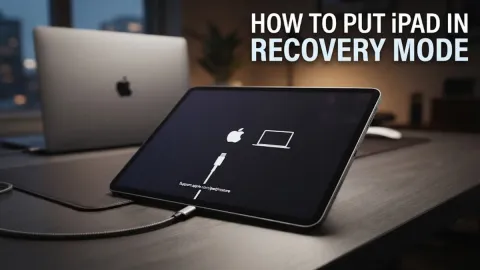
If you have exhausted all software adjustments, cleaning techniques, and hardware checks without success, deep-seated operating system corruption might be preventing your touch controller from communicating with the main processor. In this advanced scenario, performing a clean restore via recovery mode using a Mac or a Windows computer with iTunes or Apple Devices installed is your final software-based troubleshooting step. Note that this process completely wipes your iPad storage, so having an active iCloud or computer backup is essential.
Connect your iPad to your computer using a verified cable, then put the device into recovery mode using the specific button sequence for your hardware model. Open Finder or iTunes on your computer, locate your connected iPad, and click Restore when prompted. The computer will download the latest clean version of iPadOS and reinstall it from scratch. Once the restoration finishes, set up your device as new or restore from your backup to see if touch functionality returns.
The bottom line
Dealing with an iPad not working with touch can be frustrating, but working systematically through these troubleshooting steps usually pinpoints the source of the trouble. From cleaning surface debris and removing restrictive cases to performing force restarts and updating your operating system, these methods cover the vast majority of touchscreen glitches. If none of these software solutions work, your iPad may have experienced physical hardware damage to the digitizer cable or screen glass, requiring professional service at an authorized Apple Store or repair center.
Frequently asked questions
Why is my iPad screen not responding to my fingers?
Touchscreen unresponsiveness can be caused by static buildup, moisture, dirty screens, bulky protective cases, temporary software freezes, or outdated iPadOS versions.
Can I restart my iPad if the touch screen is completely frozen?
Yes. You can perform a force restart using the physical button combinations for your specific iPad model without needing to interact with the touch screen.
Will updating iPadOS delete my personal data?
No. Installing standard software updates through the settings menu preserves your photos, messages, apps, and personal data.
Do screen protectors cause touch sensitivity issues?
Low-quality, excessively thick, or damaged glass screen protectors can trap air pockets and interfere with capacitive touch recognition.
What should I do if my iPad still doesn't work after a full restore?
If a full recovery mode restore fails to fix the touch response, your iPad likely has a hardware defect and requires professional repair.